
1. Introduction
This guide walks you through the onboarding process required to enable payouts to your company bank account. Once completed, you will be able to receive funds from express payments (drivers paying directly at your charging stations).
eMabler partners with Adyen, a regulated global payment platform, to handle payment processing, regulatory compliance and payouts. As an eMabler customer, you onboard onto Adyen as a sub-merchant under the eMabler platform. This onboarding includes a Know Your Customer (KYC) verification, which is a regulatory requirement that must be completed before any payouts can be made to your bank account.
Why this is required: Payment industry regulations require Adyen to verify users on the eMabler platform before processing payments, paying out funds, or offering financial products. These checks are performed once and unlock your ability to use payout capabilities on eMabler Connect.
2. What You Will Need Before Starting
Before eMabler can send you the onboarding invitation, please prepare the following information for your company. Having everything ready will let you complete the onboarding in a single sitting (typically 15–25 minutes).
2.1 Information you must share with eMabler in advance
Before we trigger the invitation, please provide your eMabler Customer Success Manager or Account manager with the contact details of the person who will complete the onboarding on behalf of your company. This person must be authorized to sign on behalf of the business — see Section 3 for who qualifies.
-
Full name of the authorised signatory (exactly as it appears on their government-issued ID)
-
Business email address of the signatory (the Adyen invitation will be sent here)
-
Mobile phone number of the signatory (used for SMS verification during onboarding)
-
Job title of the signatory (e.g. CEO, CFO, Managing Director)
-
Customer support phone number (this number might be shown on drivers bank statements for some payment methods)
2.2 Company information you will enter during onboarding
-
Business legal name, exactly as registered with your local Chamber of Commerce or trade registry
-
Country of establishment and registered business address
-
Company registration number (e.g. Y-tunnus in Finland, KvK number in the Netherlands, Companies House number in the UK)
-
VAT number (or confirmation that the company has none)
-
Doing Business As (DBA) name, if your company trades under a name different from its legal name
2.3 Personal details for each decision-maker
Adyen is required to verify the identity of every decision-maker (signatories and beneficial owners). For each person, the following will be collected:
-
First name and last name (exactly as on their identity document)
-
Job title, business email and business mobile phone number
-
Residential address (used only for identity verification)
-
Date of birth
-
A government-issued photo ID: passport, national identity card, or driver's licence
2.4 Bank account information
-
Company bank account details (IBAN). The bank account must be in the country where your company is registered and held in your company's legal name.
-
Optional: a recent bank document (statement, letter, or bank-confirmation) showing the company name and full account number, in case automatic verification needs additional confirmation.
2.5 Customer support contact details
You will be asked to provide a customer-support email address and phone number that drivers (your end customers) can use if they have questions about charges that appear on their bank statements.
3. Who Should Complete the Onboarding?
Adyen requires identification of the company's decision-makers as part of the KYC process. The two key roles are the authorised signatory and the ultimate beneficial owner (UBO). The same person can hold both roles. If you are unsure who in your organisation qualifies, please contact eMabler before starting.
3.1 Authorised signatory
The authorised signatory is the person who has the legal authority to sign contracts and other official documents on behalf of your business. This is typically a board member, managing director, CEO, CFO, or an officer named on the company's trade registry extract.
During onboarding the signatory will be asked to accept Adyen's Payment Processing Terms (Adyen for Platforms Terms and Conditions) on behalf of the company, so it is important that this person has clear authority to do so.
3.2 Ultimate beneficial owner (UBO)
An ultimate beneficial owner is the natural person who ultimately owns or controls the company. Adyen recognises two types of UBO, in line with EU and global anti-money-laundering regulations:
-
UBO by ownership: any individual who, directly or indirectly, holds 25% or more of the company's shares, voting rights, or other equity.
-
UBO by control: any individual who exercises ultimate effective control over decisions for the organisation, even if they do not meet the 25% ownership threshold (for example, through voting agreements, nominee arrangements, or being the sole director of a holding entity).
Every UBO of your company must be declared during onboarding. If your ownership structure includes intermediate companies (e.g. a holding company between an individual and your operating company), you must trace ownership through to the natural persons at the top of the chain.
|
Quick check — who needs to be declared?
If no individual owns 25% or more, you must still declare at least one person who controls the company (e.g. the senior managing official). |
4. The Onboarding Process — Step by Step
The screenshots in this section show the actual Adyen-hosted onboarding pages you will see. Personal data has been redacted in this guide; you will see live data when you complete the flow yourself. The example below uses a fictional company "Customer A B.V" registered in Finland — your screens will reflect your own company's country and legal structure.
Step 1 — Receive the invitation email
Once eMabler triggers the invitation, the signatory you nominated will receive an email from Adyen with the subject "Action required: Onboarding and verification". Click the Submit information button in the email to begin.
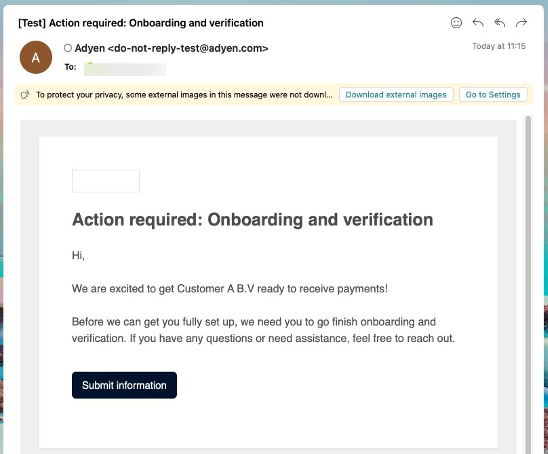
Figure 1 — The Adyen onboarding invitation email
|
Important
|
Step 2 — Verify the signatory's phone number
After clicking the invitation link, the signatory is asked to verify the phone number on file by receiving an SMS code. The phone number entered must match the one shared with eMabler in advance (a partial number is shown for confirmation).
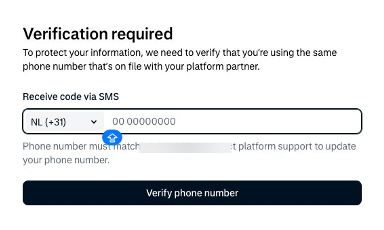
Figure 2 — Phone verification (the masked number must match the number you shared with eMabler)
If the phone number does not match, contact your eMabler CSM or Account manager to update it before continuing. The signatory cannot proceed until the SMS code is verified.
Step 3 — The "Set up your account" hub
After phone verification, the signatory lands on the main onboarding hub. This page lists all the sections that must be completed before payouts can be enabled. Sections can be completed in any order, and progress is automatically saved — you can leave and return at any time using the original invitation link.
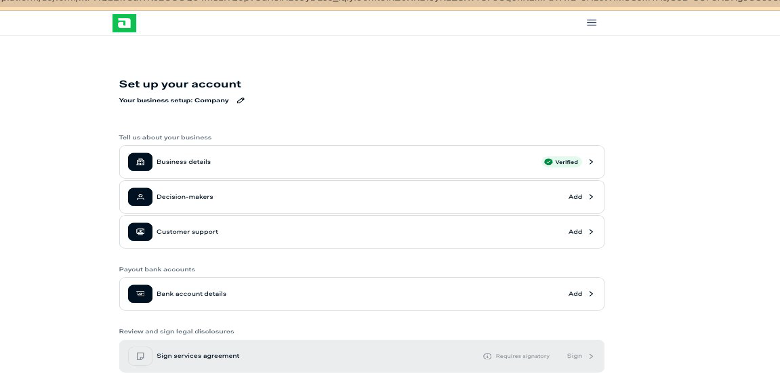
Figure 3 — The onboarding hub. Each card represents a section to complete.
There are five sections to complete:
-
Business details — information about your legal entity
-
Decision-makers — signatory and beneficial-owner identification
-
Customer support — contact details shown to drivers
-
Bank account details — where payouts will be sent
-
Sign services agreement — accept Adyen's Payment Processing Terms
Step 4 — Complete the business details
Open the Business details card. You will be asked for your company's basic information.
4.1 Basic details
Enter the company's legal name exactly as it appears on the official Chamber of Commerce or trade registry registration. Select the country/region of establishment from the dropdown. Any mismatch with the registry will cause verification to fail.
4.2 Additional details (registration number, VAT, address)
Next, you will provide the company's registration number, VAT number, and registered business address. The field labels are localised to the country of registration. For example, in Finland the registration-number field is labelled "Y-TUNNUS" and the VAT field is labelled "Arvonlisäveronumero / Mervärdesskattenummer"; in the Netherlands it would be "KvK" and "BTW".
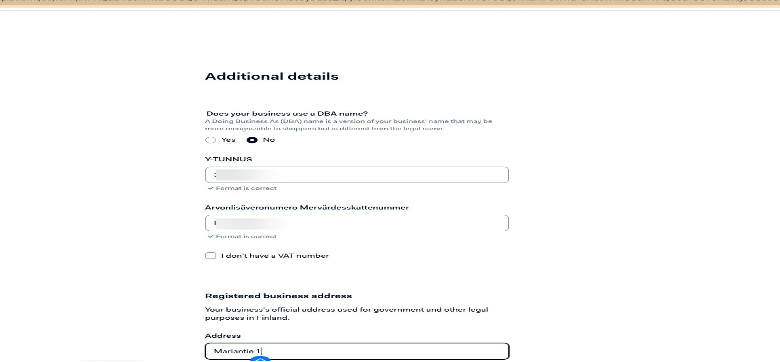
Figure 4 — Registration number and VAT (localised labels — example: Finland)
A green "Format is correct" check confirms each value matches the expected pattern for your country. If your business uses a Doing Business As (DBA) name — a trading name different from the legal name — answer "Yes" and provide it; otherwise leave it as "No". If your company is not VAT-registered, tick "I don't have a VAT number".
Continue scrolling to enter the registered business address. This must be the official address used for government and legal purposes — not a P.O. box or billing address.
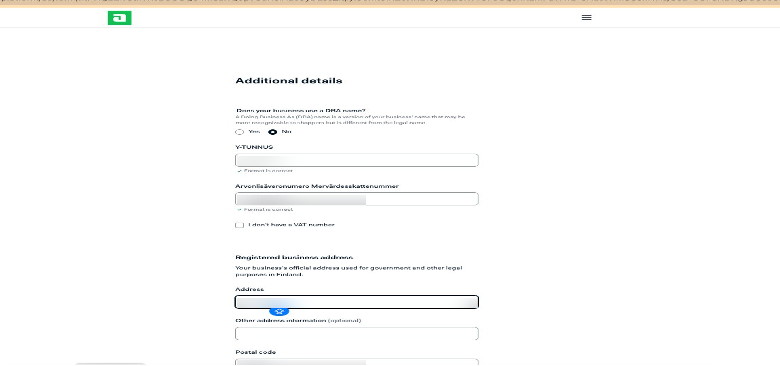
Figure 6 — Registered business address
|
Common mistake Adyen automatically cross-checks the company name, registration number, and address against official trade-registry data in your country. The most frequent cause of verification failure is a typo or an outdated value here. If you are unsure, copy the values directly from your most recent registry extract. |
Step 5 — Add decision-makers (signatories and beneficial owners)
Open the Decision-makers card. You will add at least one person — the signatory — and any additional ultimate beneficial owners. For each person, Adyen asks two qualifying questions before collecting their details.
5.1 Question 1 — Is this person an authorised signatory?
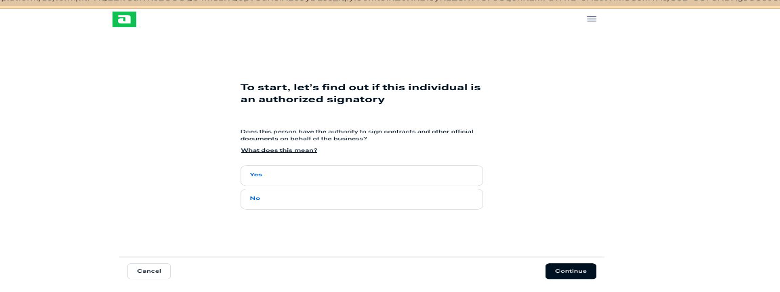
Figure 7 — Authorised signatory question
Select "Yes" if this person has the legal authority to sign contracts and accept Adyen's Terms of Service on behalf of the company. At least one person you add must answer "Yes" here.
5.2 Question 2 — Is this person a beneficial owner?
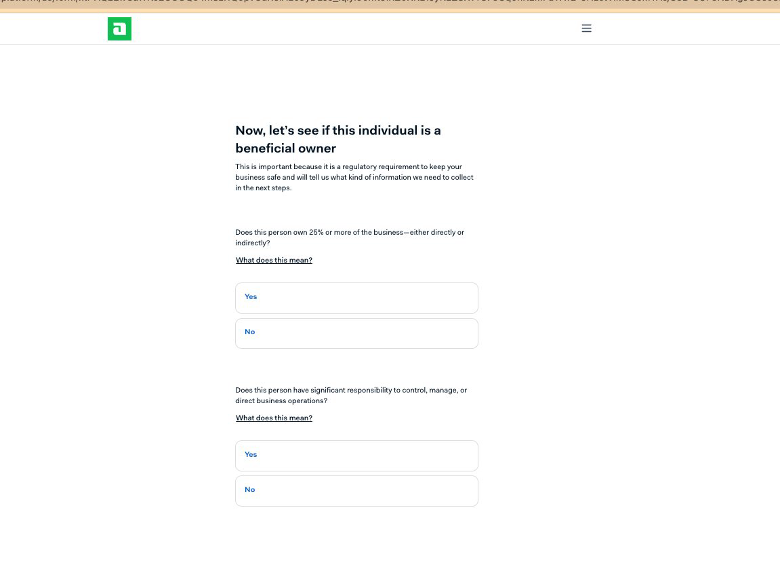
Figure 8 — Beneficial owner determination
Two questions appear:
-
Does this person own 25% or more of the business — either directly or indirectly? Answer "Yes" if they meet the ownership threshold described in Section 3.2 (UBO by ownership).
-
Does this person have significant responsibility to control, manage, or direct business operations? Answer "Yes" if they exercise ultimate effective control (UBO by control).
A person can answer "Yes" to one or both — for example, a CEO who also owns 40% of the company is both a UBO by ownership and a UBO by control. The signatory does not need to be a UBO.
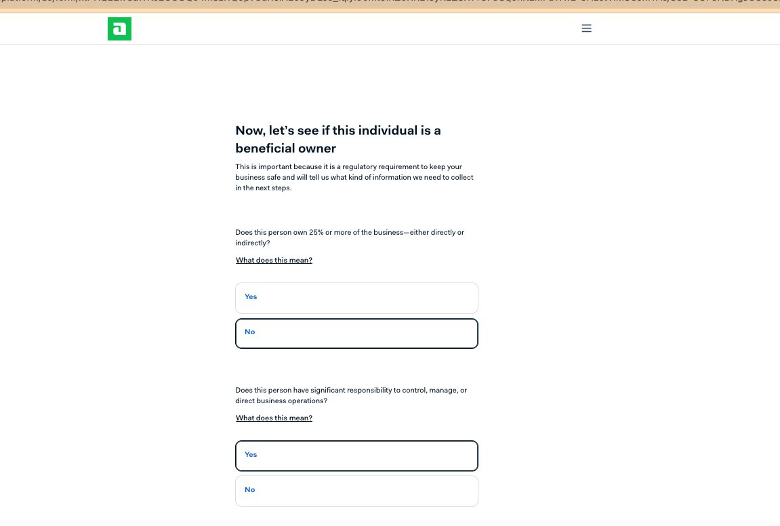
Figure 9 — Example: this person is not an owner but does have significant control
5.3 Personal details
After the qualifying questions, enter the person's personal information. The first and last names must match exactly what appears on their government-issued ID — even a small mismatch will cause identity verification to fail.
5.4 Identity verification
Adyen verifies identity through Onfido, an independent identity-verification provider. The signatory can either run an automated verification (recommended — usually under two minutes) or fill in the details manually.
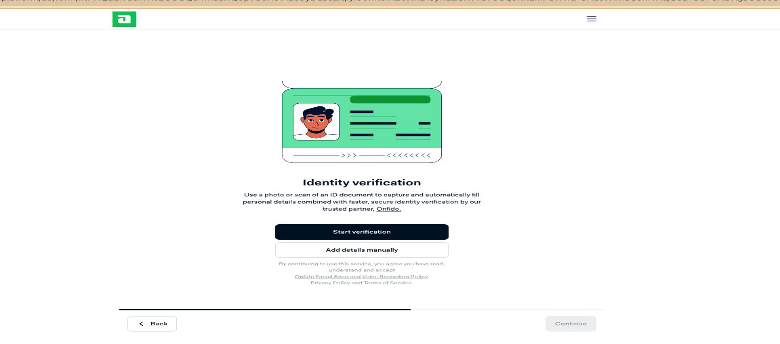
Figure 10 — Identity verification entry point (Onfido)
Choose the country that issued the ID document, then select the document type. Accepted documents include passport, national identity card, and driver's licence (the exact list depends on the issuing country).
5.5 Residential address and date of birth
Enter the person's residential address (their primary home address — not the business address) and date of birth. The address is used only for identity verification and is not shared with eMabler.
5.6 Upload the ID document
Choose the document type and upload a clear photo or scan. The document must be:
-
Valid (not expired or damaged)
-
In colour, with all text readable, the full document visible, and the photo page included
-
JPG, JPEG, PNG or PDF — maximum 4 MB per file
-
Free of glare, blur, and not cut off at the edges
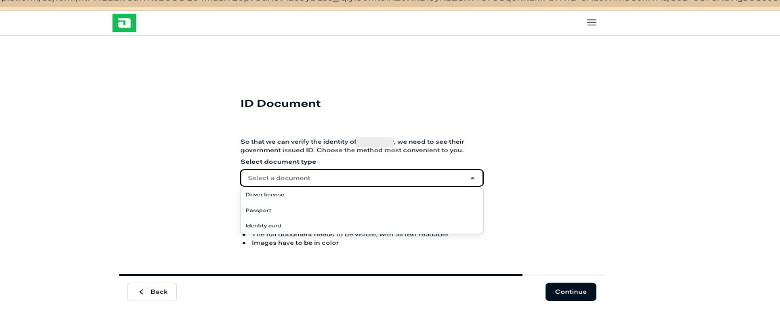
Figure 11 — Choose the document type
Once the document is accepted, the Decision-makers card on the hub shows a green "Verified" badge. Repeat steps 5.1 to 5.6 for every additional UBO. If your company has no individual owning 25% or more, declare at least the senior managing official (e.g. CEO or Managing Director).
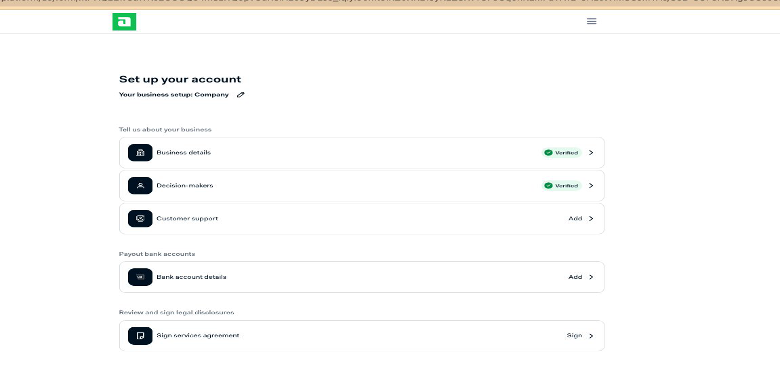
Figure 12 — Hub view after Decision-makers is verified
Step 6 — Customer-support contact details
Open the Customer support card. The email and phone number you enter here will be visible to your end customers (drivers) — for example, on bank statements when they look up an unrecognised payment. Use a monitored channel that can answer charge-related questions, not a personal mailbox.
Submit the form. The card will then show as "Verified" on the hub.
Step 7 — Add the payout bank account
Open the Bank account details card. The bank account must be held in your company's legal name and must be in the country where your company is registered.
7.1 Choose a verification method
Adyen offers two verification methods:
-
Log in with your bank (recommended). Adyen connects to your online banking via Tink (a regulated open-banking provider). The signatory logs into the company bank account and consents to a one-time verification — your account is verified within seconds, with no document upload required.
-
Verify manually. You enter the IBAN by hand. A bank document upload may be required for additional verification.
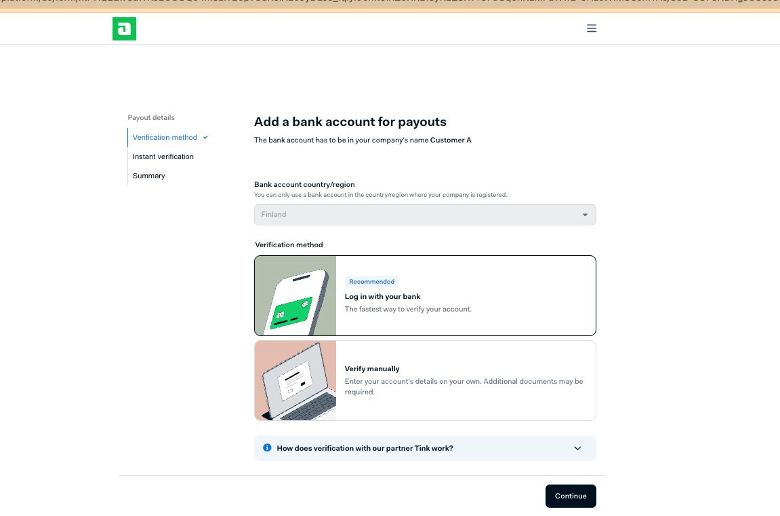
Figure 13 — Bank verification methods
7.2 Instant verification via Bank (recommended path)
If you choose "Log in with your bank", you will be redirected to Tink. Review the consent screen and click Continue.
Pick a sign-in method offered by your bank — typically Password and OTP, or a Redirect to your bank's own login flow.
7.3 Manual entry (alternative path)
If instant verification is not available for your bank, or you choose to verify manually, enter the company IBAN. Adyen will run automated checks against the data you have already submitted.
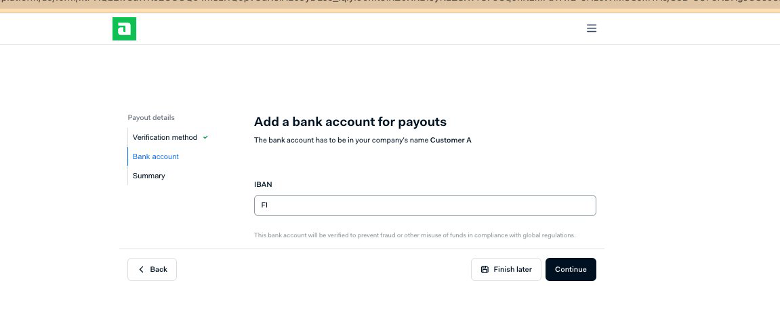
Figure 14 — Manual IBAN entry
If automatic verification cannot fully confirm the bank account, you will be asked to upload a recent bank document. Acceptable documents include a bank statement, an official letter from the bank, or a downloaded bank-confirmation document. The document must show your company name, the full account number, the bank's logo or name, and clearly readable text. Do not upload photos of bank cards.
Once the bank account is verified, the hub shows it as "Verified" with the IBAN partially masked for security.
Step 8 — Sign the Adyen for Platforms Terms and Conditions
The final step is for the authorised signatory to review and sign Adyen's Payment Processing Terms. These are the standard Adyen for Platforms Terms and Conditions covering payment processing, user obligations, chargebacks and refunds, liability, governing law, and local requirements.

Figure 27 — Adyen for Platforms Terms and Conditions
We strongly recommend the signatory downloads the agreement as a PDF for their records using the "Download as PDF" button. Then, in the Signer dropdown, the authorised signatory selects their own name. If the signatory's name is missing, they can use "Add yourself as a signer".
Tick the confirmation checkbox to confirm the signer is a legal representative authorised to accept the terms on behalf of the company, and click Sign.
5. What Happens After You Submit
Once all five sections are complete and signed, your submission goes to Adyen for verification. You don't need to do anything further at this stage.
-
Most checks are automated and complete within minutes. You may receive an email confirmation from Adyen once verification succeeds.
-
If a manual review is needed (for example, a document needs a closer look), it usually takes up to 48 hours. eMabler is automatically notified of the status.
-
If something fails verification, Adyen will email the signatory with details of what to correct. The same invitation link can be reused to resubmit — no new invite is required.
Once your account holder is verified and your payout capability is enabled, eMabler will activate express payments for your company on the eMabler Connect platform. From that point on, funds collected from drivers at your charging stations will be paid out to the company bank account you registered, on the payout schedule defined in your eMabler agreement.
6. Need Help?
If you have any questions during onboarding, please contact your eMabler CSM or Account manager. We can review your KYC status from the eMabler back office and help you resolve any verification errors. Please do not contact Adyen directly — Adyen's relationship is with eMabler as the platform, and your account manager is the fastest route to a resolution.