
eMabler MCP is a hosted Model Context Protocol (MCP) server. It lets an AI client that you choose, for example Claude, read your eMabler data and answer questions about your sites, chargers, charging sessions, drivers, tariffs and invoices. The AI client reads with the access of the operator who connects it, and it can only read.
What it does
MCP is an open protocol that AI clients use to call external tools. eMabler MCP exposes set of read tools. Each tool maps to one read in eMabler API v2, so the data and the access rules are the same as in the REST API and in Connect.
Examples of what you can ask once the client is connected:
-
Which chargers at a given site are offline right now, and since when?
-
Why did yesterday's session on a given charger fail?
-
What was the session success rate of our sites last week, and which chargers pull it down?
-
How much energy did a site deliver per day in October?
-
Which drivers are authorised to charge at a given site?
What it does not do
-
No writes. It cannot create, change or delete anything in eMabler.
-
No charger commands. It cannot start or stop charging, reboot a charger or change its configuration.
-
No document downloads. Invoice tools return invoice data, not the invoice file.
-
No management of API keys or agent keys.
Before you start
-
An operator account in Connect.
-
Agent keys allowed for your organisation. In Connect, open
Settings>Developersand, in the Agent keys section, switch on Allow agent keys in your organization. This is an organization-wide setting. When it is off, no agent key in your organization works and new keys cannot be created. -
An AI client that supports remote MCP servers over Streamable HTTP. Clients that support MCP sign-in (OAuth), such as Claude Desktop, claude.ai and Claude Code, need only the URL. Other clients, such as n8n, connect with an agent key in a header.
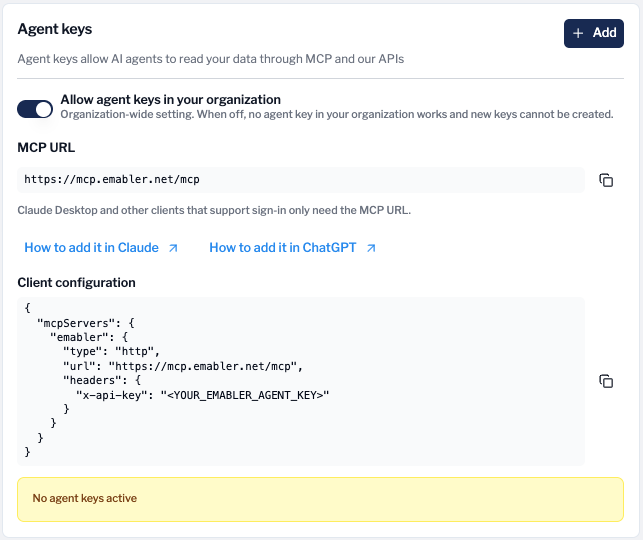
MCP URL
The eMabler MCP URL is https://mcp.emabler.io/mcp.
The same URL is shown in Connect under Settings > Developers, in the Agent keys section, with a copy button and links to the Claude and ChatGPT instructions.
Connect with sign-in
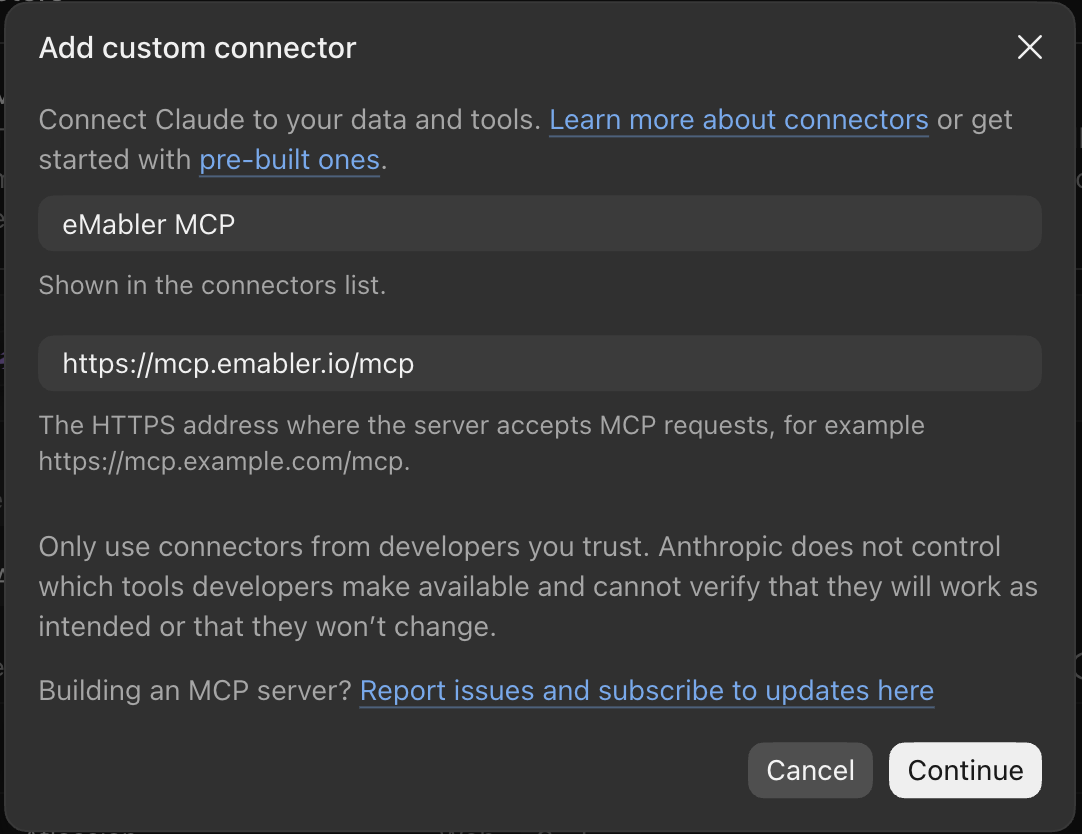
This is the simplest way. You do not copy a key by hand. Add the eMabler MCP URL to your AI client as a custom connector or remote MCP server. How that is done depends on the client, so follow the vendor's own documentation:
When the client connects, a browser window opens on Connect. Sign in the way you normally do. On the page Connect an AI client to eMabler, check that the address it returns to is the client you started from, fill in the key name, the data the client may read, any sensitive data and the expiry, and select Create key and connect. Connect creates a new agent key and hands it to the client. The key is never shown on screen. If your client cannot complete the sign-in, connect with an agent key instead, as described below.
If Connect shows "eMabler has not verified this application", continue only if you started the sign-in yourself from your own AI client. Do not complete a sign-in that someone sent you as a link.
Every sign-in creates a new agent key. An existing key cannot be reused through sign-in, because eMabler does not store keys in readable form. The sign-in link is valid for 10 minutes. If it expires, start again from the AI client.
Connect with an agent key (without sign-in)
You can also create a single agent key in Connect and give it to the client directly. No sign-in (OAuth) is involved. Use this for clients that cannot do MCP sign-in, or when you want one fixed key for an integration.
-
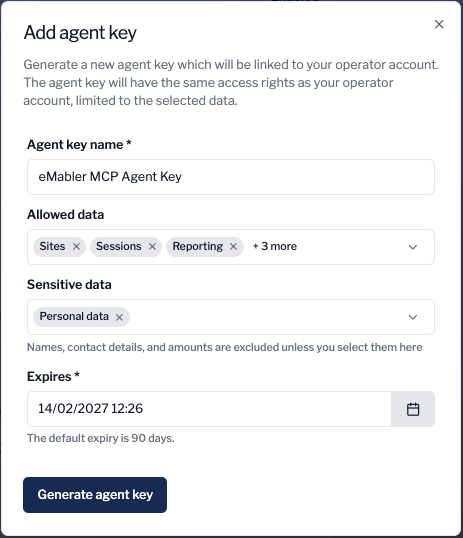
In Connect, open
Settings>Developersand select Add in the Agent keys section. Choose the name, the data it may read, any sensitive data, and the expiry. -
Copy the key when it is shown and store it in a secure place. It cannot be shown again. Agent keys start with
emak_v1_. -
Copy the Client configuration from the same section, replace
<YOUR_EMABLER_AGENT_KEY>with your key, and add it to your client. The key is sent in thex-api-keyheader.
The client configuration as Connect shows it:
{
  "mcpServers": {
    "emabler": {
      "type": "http",
      "url": "https://mcp.emabler.io/mcp",
      "headers": {
        "x-api-key": "<YOUR_EMABLER_AGENT_KEY>"
      }
    }
  }
}
Example for Claude Code:
claude mcp add --transport http emabler https://mcp.emabler.io/mcp --header "x-api-key: <YOUR_EMABLER_AGENT_KEY>"
Use an agent key, not an ordinary API key. eMabler MCP accepts only agent keys. An agent key is read-only and limited to the data you select, which an ordinary API key is not.
Access and permissions
-
The key reads with your access. An agent key belongs to the operator who created it and never sees more sites, chargers or drivers than that operator does.
-
You choose the data areas. When you create the key you select what it may read: sites, chargers, sessions, reporting, tariffs, drivers, companies, billing, invoices and automation. A tool outside the selected areas is refused.
-
Sensitive data is separate. Personal data (driver names, emails and other direct identifiers) and financial data (prices and amounts) are returned only if you select them for the key. Without them, the same tools answer with those fields left out.
-
Keys expire. You set the expiry when you create the key. There is no automatic renewal. When a key expires, sign in again or create a new key.
-
Keys can be revoked. Revoke a key in Connect under
Settings>Developers. It stops working in eMabler MCP within one minute.
eMabler MCP returns your data to the AI client you connected. From there it is processed by that client and its model provider, under your agreement with them. Where eMabler MCP is hosted does not decide where your AI client processes the data. Select only the data areas the client needs.
Available data
What the AI client can read depends on the data areas of the key.
|
Data area |
What you get |
|---|---|
|
Access |
What the key can read: customer, owner, data areas and expiry. |
|
Sites |
Sites and their address details. |
|
Chargers |
Chargers and sockets, model, firmware, connectivity, status history, meter readings and stored charger events. |
|
Sessions |
Completed and ongoing charging sessions, their energy readings and errors. |
|
Reporting |
Success rate, utilization, energy and session time series, summary figures compared with the previous period, monthly usage trends and API call counts. |
|
Tariffs |
Tariffs and their versions. Prices need the financial data selection. |
|
Drivers |
Drivers and where they are authorised to charge. Names and emails need the personal data selection. |
|
Companies |
Companies (billing entities) under your account. |
|
Billing |
Your eMabler platform usage per billing period and the cost of the current period to date. Amounts need the financial data selection. |
|
Invoices |
Site and driver invoices, and invoices recorded in the finance system. Invoice data only, no file download. |
|
Automation |
Automation rules, the alerts they raised and what they did. |
Limits
The limits are those of API v2:
-
get_charger_success_rateandget_charger_utilization_rate: a time window of at most 7 days. -
get_charger_events: at most 31 days. -
get_usage_trendsandget_api_consumption: at most 366 days. -
list_sessions: at most 200 rows per page.list_netvisor_invoices: at most 100 rows per page. -
get_ongoing_session_metadata: at most 100 sessions per call.
List tools return one page at a time. For large data sets, ask the client for a narrower time window or a specific site.
Troubleshooting
|
What you see |
Cause and fix |
|---|---|
|
The client asks you to sign in again |
The agent key has expired or was revoked. Sign in again. This creates a new key. |
|
"This sign-in link expired. Start again from your AI client." |
The sign-in was not completed within 10 minutes, or the link was already used. Start the connection again from the AI client. |
|
Connect shows no button to create a key |
Allow agent keys in your organization is switched off. Switch it on under |
|
HTTP 401 with an |
The value is not a valid agent key, or the key has expired or was revoked. Check that it starts with |
|
A tool answers with |
The key does not include the data area the tool needs, or the operator has no access to that site. Call |
|
A tool answers with status 400 |
An argument is invalid, most often a time window over the limit. The error text says what to change. |
|
HTTP 503, or a tool answers with status 502 or 504 |
eMabler MCP could not reach the API, or the call timed out. Try again. If it continues, contact customer service. |
For developers
-
Transport: Streamable HTTP, stateless,
POSTon/mcp. -
Authentication:
Authorization: Bearer <agent key>orx-api-key: <agent key>. If both are sent,Authorizationis used. -
Sign-in follows the MCP authorization specification: OAuth 2.1 authorization code with PKCE (S256), dynamic client registration, and metadata at
/.well-known/oauth-protected-resourceand/.well-known/oauth-authorization-server. The access token is the agent key. There are no refresh tokens. -
Every tool returns a JSON object as text:
{statusCode, available, data, error}. When the API refuses or fails a call,availableisfalseanderrorcarries the API's answer.