
Define charge point settings once, and apply them in bulk across your entire network — regardless of vendor, model, or firmware.
Overview
"Create templates for your most commonly used charger configurations and apply them in bulk." — Configuration templates, in product
Configuration templates is the bulk configuration management capability inside eMabler Connect, grouped under Sense → Pulse alongside Automations. Where the Charger configurations view is the right tool for editing OCPP parameters on a single charge point, configuration templates are the right tool for managing configuration consistently across many.
A template captures the operator’s intent — "free charging for guest sites", "strict authentication for public sites", "baseline OCPP settings for our 22 kW network" — and Connect translates that intent into the right OCPP configuration for each individual charge point. Define a template once, link it to the charge points it should apply to, and Connect keeps the network in sync from that point on.
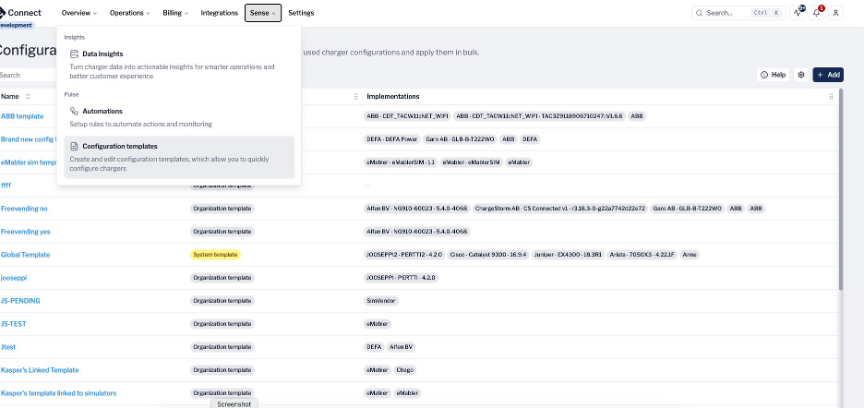
FIG · 01 Configuration templates lives under Sense → Pulse, grouped with Automations. The Insights area covers Data Insights; Pulse covers the platform’s automated and bulk operations capabilities.
The problem configuration templates solve
A charging network at scale rarely runs on a single hardware vendor or firmware version. A typical CPO operates a mix of manufacturers, models, and firmware revisions, each of which exposes its own slightly different OCPP configuration surface.
Without a templating layer, every change — turning on free charging at a new site, tightening authentication, adjusting heartbeat intervals — becomes a manual, per-charge-point exercise that is slow to roll out, hard to verify, and impossible to keep in sync as the network grows.
Configuration templates replace that with a single source of truth. The desired configuration is described once, the platform handles the differences between hardware variants, and any future change is propagated to every affected charge point automatically.
How configuration templates work
A configuration template has two layers — the template itself, and one or more configuration implementations that describe how the template applies to different hardware. Templates can be created at the organisation level (visible to a single customer) or at the system level (curated by eMabler and available across customers).
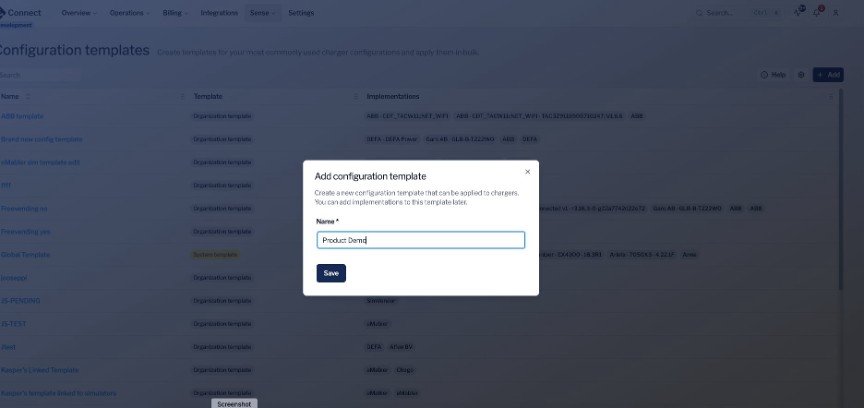
FIG · 02 The Configuration templates list shows every template in the organisation alongside its configuration implementations. Operators can create a new template by name, then add implementations afterwards.
Configuration implementations
Implementations let you define how a configuration template should be applied to specific chargers with different manufacturer, model, or firmware versions. A single template can carry multiple implementations side by side, each scoped to a manufacturer, model, and firmware — with sensible fallbacks for "any vendor", "any model", or "any firmware" when fields are left empty.
When applying the template to a charge point, Connect picks the most specific implementation that matches its hardware identity. The same template behaves correctly across a heterogeneous fleet without operators having to think about hardware differences. A bulk-apply view shows compatibility per charge point so operators always know what will actually be delivered.
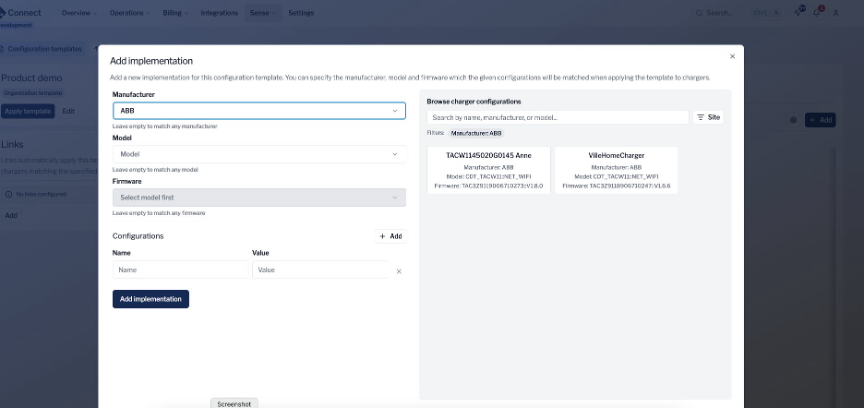
FIG · 03 Adding an implementation: pick the manufacturer, model, and firmware the implementation targets (or leave any field empty to match all), then add the OCPP configuration key/value pairs. The right-hand panel surfaces existing chargers that match the criteria, so operators can verify scope before saving.
Links: tag-driven application
Links automatically apply this template’s configuration to chargers matching specified custom properties or labels. Operators rarely think about charge points one at a time — they think in terms of site types, customer segments, or product tiers. Links bind a template to a label (a single value) or a custom property (a key/value pair), and any charge point carrying the match automatically receives the template.
Adding the label to a new charge point is enough to bring it into compliance. Removing it releases the linkage. When the underlying template is updated, every linked charge point is brought back into sync — no manual re-apply.
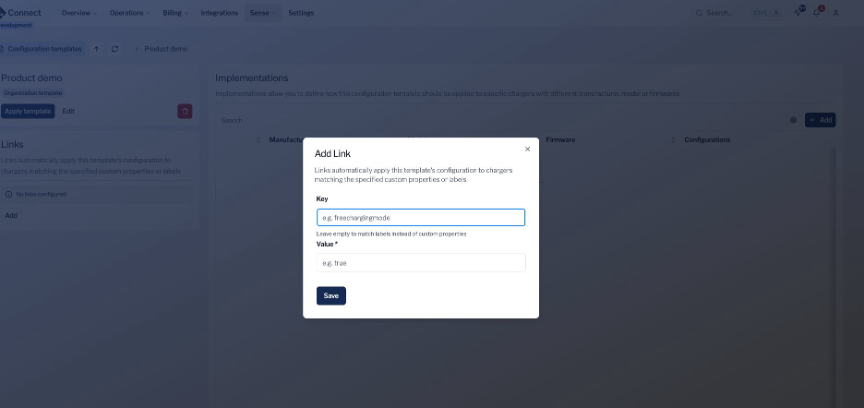
FIG · 04 Configuring a Link. Provide a key/value pair to match a custom property (e.g. freechargingmode = true), or leave the key empty to match a label by value alone.
Labels and custom properties: the metadata behind Links
Labels and custom properties are how charge points are tagged in Connect. Labels are simple singular values (for example, A - Own charger); custom properties are key/value pairs (for example, Freecharging: true). Both are managed per charge point — manually in Connect or programmatically over the eMabler API — and both feed Configuration template Links.
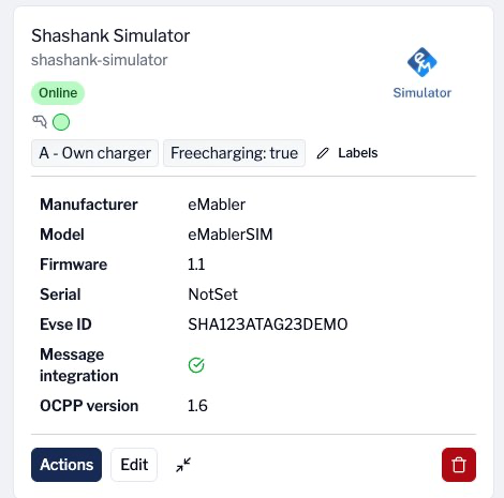
FIG · 05 Labels and custom properties on a charge point are visible directly on the charger detail view, and drive automatic template application via Links.
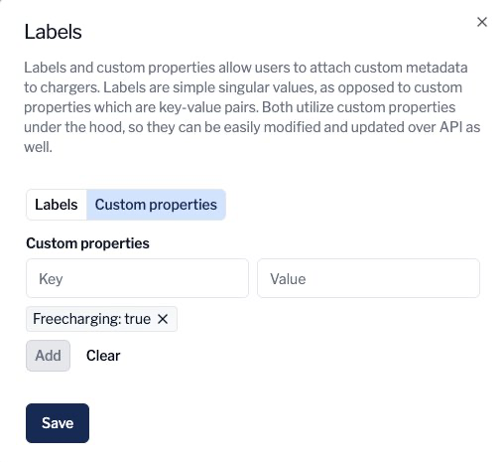
FIG · 06 Custom properties are key/value pairs; labels are singular values. Both are edited from the same dialog and shared across the API surface.
Apply directly, when you need to
Operators can also apply a template manually from the template detail page. The Apply template action surfaces a bulk-apply view with site, charger-type, and other filters, so a one-off rollout — say, a new baseline being trialled across a region before being committed to a Link — is a few clicks rather than a scripted exercise.
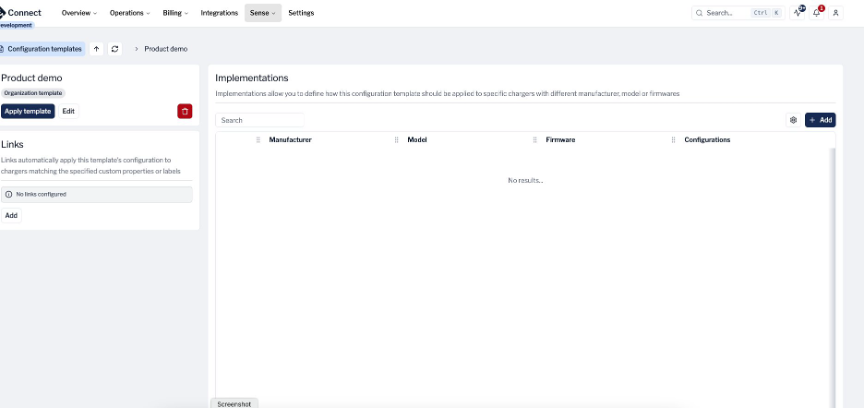
FIG · 07 The template detail page brings the three concepts together: the template itself (left), its configuration implementations (right), and any Links that automatically apply it (below).
Key capabilities
Apply in bulk across vendors
A template captures the operator’s intent. Connect translates it into the right OCPP configuration for each piece of hardware. The same template applies cleanly across a multi-vendor network without per-vendor scripting or copy-pasted config bundles.
Centralised updates that propagate
Editing a template updates every charge point linked to it. Connect compares each charge point’s current configuration against the new desired state and only sends changes for the OCPP keys that actually differ — avoiding unnecessary protocol traffic and reducing the risk of disrupting active sessions.
Conflict-aware application
When more than one template applies to the same charge point and the templates touch the same configuration key, Connect handles the overlap predictably:
-
If every template specifies the same value for that key, it is applied.
-
If templates disagree, the key is left alone rather than picked at random.
This makes it safe to layer templates — for example, a baseline template for the whole network and a more specific template for a particular site — without unintended interactions.
Resilient delivery to offline charge points
Charge points are not always online when a configuration change is requested. Connect tracks pending configuration changes per charge point and per OCPP key, and delivers them the next time the charge point reconnects and reports its current configuration. The most recent intended value is what gets applied.