
eMabler provides a turnkey solution to bring EV charging functionality to your applications. Our Driver app is a separate web application which makes it an easily embeddable solution. No matter your technology choices or platform for your application, you can just embed eMabler Driver app via an iframe or webview and have EV charging functionality in a matter of days.
Features
eMabler Driver app supports the following features:
-
Built-in access control for charging infrastructure
-
You decide the site and charger access on Connect for your driver and it is portrayed in the app realtime
-
Drivers can select which chargers to use based on the given options
-
-
Drivers can start and stop charging and unlock connectors from the app
-
All the required actions for daily EV charging needs
-
-
Drivers have access to their session history
-
Drivers can view previous sessions and see their consumption on a session level
-
-
App preview from Connect
-
Navigate to the Driver you want to use as the user for preview and click “View” from Driver app on the Driver details. From there you can open the app into a separate window and see how the Driver app works.
-
How to take it into use
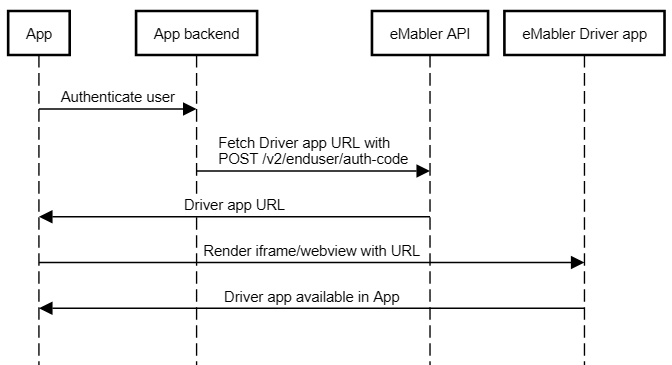
Taking eMabler Driver app into use is very straightforward. Responsibilities and the flow on how to take Driver app into use visualized below. “App“ and “App backend” mean your organization's software, where as “eMabler API” and “eMabler Driver app” are provided by us.
Prerequisites
-
You need to link your users to Drivers in eMabler via external id. External id is used to link “Driver” entity on our end to your “user” entity. How you want or have implemented user management and models is completely up to you to decide, but those entities need to be linked with “Driver” external id.
-
You need to provide “Driver” with some access. Either individual charger or site access is needed. Otherwise “Driver” cannot do anything with Driver app, since there are no chargers available.
-
In your “App backend” you need to have a connection to our API. If you have no existing connection, see instructions on how to take eMabler API into use from here: Getting started with API V2
-
Your “App” should be able to render a normal web application which is served via public internet over HTTPS. Use webview for native mobile applications, iframe for browser based applications or other related technology which your “App” supports.
Embedding Driver app to your App
-
Driver app functionality needs to be enabled, before calling any related endpoint is possible. You can enable the Driver app from Driver app settings in Connect if you have Global Admin permissions.
-
Driver app needs to know which “Driver” is currently authenticated. This is done by calling the
POST /v2/enduser/auth-codeendpoint (docs available in API reference - Entity management) . It takes “Driver” external id for the request body and returns an URL which you should use to render the webview/iframe.-
POST /v2/enduser/auth-codereturns the URL for the Driver app with search parameter “auth_code”. This auth code is used by the app to authenticate the “Driver” and fetch a token which the Driver app will then use to authenticate following requests. You don’t need to worry about anything else than calling thePOST /v2/enduser/auth-codewith the correct external id, everything else is handled by us.
-
-
Once you have the URL available, you just need to render the Driver app on your App. That’s it.
Further options
-
Localization
-
Driver app supports following locales:
-
en-GB
-
fi-FI
-
fr-FR
-
nb-NO
-
pl-PL
-
sv-SE
-
-
If you want to render Driver app with some locale from above, add
langsearch parameter on the URL provided byPOST /v2/enduser/auth-code. Final URL should be of formathttps://<driver-app-url>/?auth_code=xxxx&lang=fi-FI
-
-
Branding/white labeling
-
You can change the logo and the colors of the driver app from Driver app settings in Connect
-
-
Dark mode
-
Driver app supports dark and light modes natively
-
You can force either mode by passing
modesearch parameter with either valuedarkorlight -
If no
modesearch parameter is found, the mode is selected based on the user’s preference set on their device -
Please note that when using dark mode, please make sure your logo is properly visible against the dark background. You can see a preview of the app on Driver app settings in Connect.
-
Encountered issues?
If you encounter any issues during taking eMabler Driver app into use, don’t hesitate to contact us. We are here to help!