
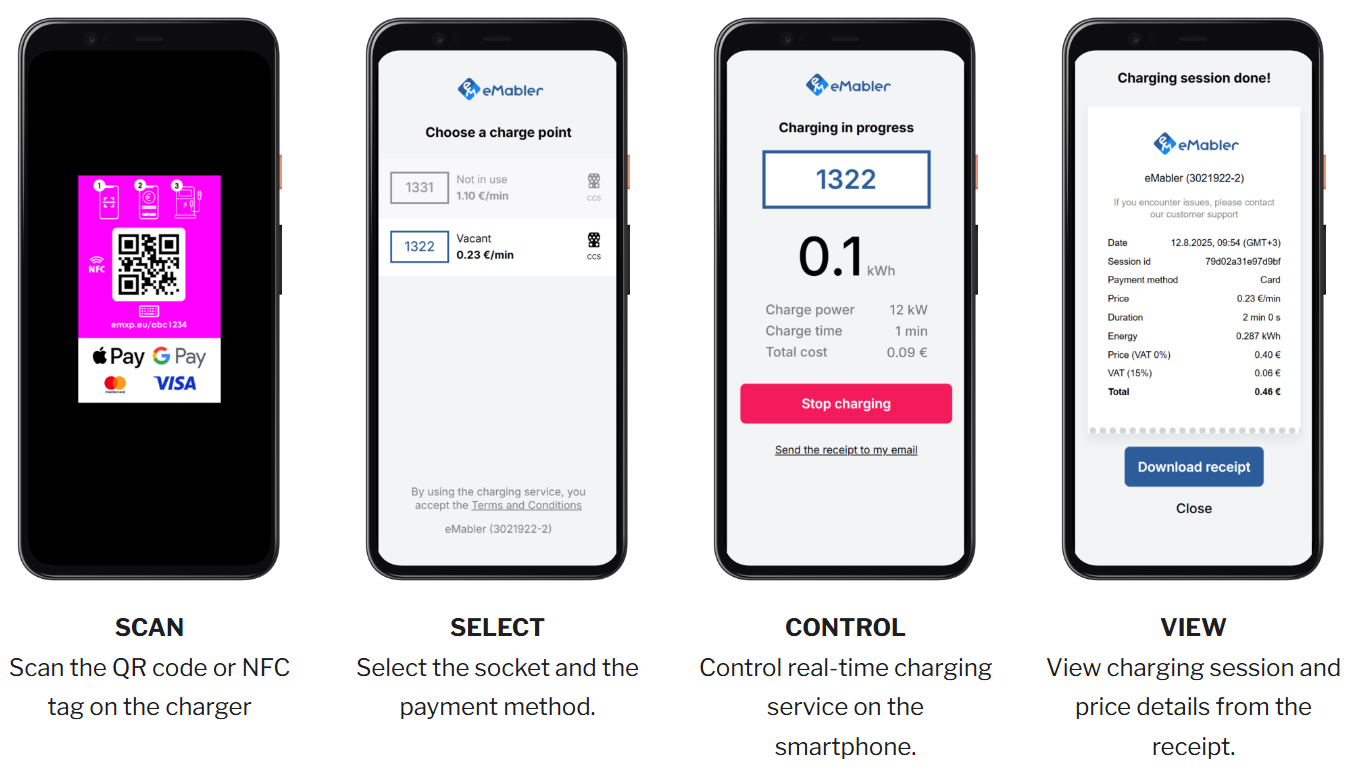
Express is eMabler’s white label ad hoc payment page. A driver scans the QR code, pays with a card or mobile wallet, and controls the session from their web browser. There is no app to install, no account to create and no RFID token to issue.
This page covers what Express does, the three ways operators deploy it, and every configuration step in eMabler Connect — branding, pricing, settlement, charger setup and reporting.
What Express does
-
Takes card and wallet payments at the charger — Visa, Mastercard, Apple Pay, Google Pay and other wallets supported by Adyen.
-
Carries your brand, not eMabler’s — logo, colours, company name, VAT number and terms are yours, set per network or per site.
-
Places an authorization hold, then charges the real amount — the driver sees the hold before they start; Connect captures the final session cost when charging stops.
-
Issues a digital receipt — the driver opts in at the end of the session.
-
Settles into your own Adyen balance account — payouts land in your bank account, not in an eMabler account you have to invoice against.
How a driver pays
|
Step |
What the driver does |
What Connect does |
|
Scans the QR code or taps the NFC tag on the charger |
Opens your branded Express page for that charger |
|
Picks the socket and the payment method |
Places an authorization hold on the card |
|
Starts and stops charging from the browser |
Sends the OCPP start and stop commands to the charger |
|
Opts in for a receipt and reviews the session |
Captures the final amount and writes the session to Charging sessions |
Before you start
Express needs a payment account before it needs any configuration. Two things have to happen in order.
1. Adyen onboarding and KYC
Contact eMabler support to open your Adyen account. Onboarding is a KYC process, so have this ready:
-
Authorized signatory details
-
Business email address
-
Mobile number
-
Job title of the signatory
-
Customer support phone number to print on receipts
One KYC run produces one Adyen balance account. That balance account is what Express pays out from.
2. Your CSM shares the balance account ID
When onboarding completes, your eMabler CSM gives you the Balance account ID. You need it to configure settlement on a site — see Assign an accounting unit to a site.
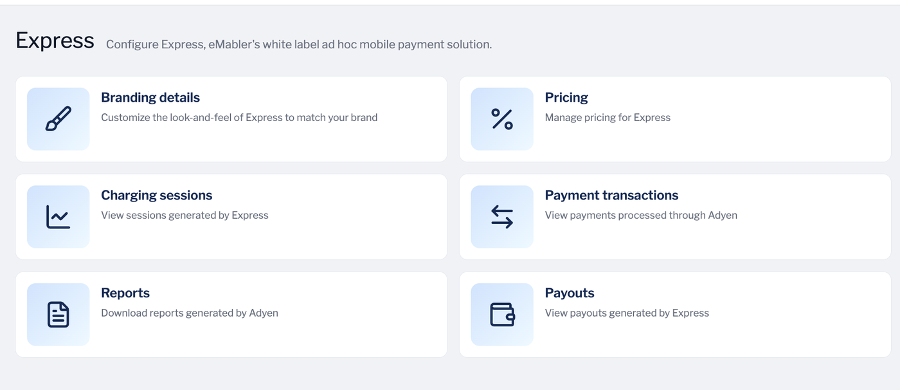
Billing → Express after Adyen onboarding — payment transactions, reports and payouts are now available.
Three ways to deploy Express
How you set Express up depends on how many legal entities and countries you operate in, and whether parts of your network need to be paid out separately. Pick the pattern that matches your organisation before you configure anything — branding and settlement both follow the site tree, so the shape you choose here is the shape you live with.
|
Pattern |
Use it when |
Branding |
Settlement |
|
You operate in one country under one legal entity |
One default branding, applies to every site |
One accounting unit at the top of the site tree |
|
You operate in several countries, each with its own entity and bank account |
Default branding plus one site-specific branding per country site |
One accounting unit per country site |
|
Part of your network — a franchise, a property owner, a subsidiary — must be paid out on its own |
Inherited, or site-specific if the sub-brand differs |
Accounting unit overridden on the sub-site; its own sub-sites follow the override |
Use case 1 — one country, one brand, one payout account
A CPO operating in a single country runs the simplest setup:
-
Complete one Adyen onboarding for the legal entity. You get one balance account.
-
Configure the Default branding under Billing → Express → Branding details. Every site uses it.
-
Assign one accounting unit, holding that balance account ID, to the top site in your tree. Every site below inherits it.
-
Enable Express on each charger and set socket pricing.
Result: one brand on every Express page, one payout stream, one reconciliation file per payout.
Use case 2 — several countries, branding and payout per country
An operator running Express in more than one country usually has a separate legal entity, VAT number and bank account per country. Model each country as its own site.
-
Create a site per country — for example Customer Country A and Customer Country B.
-
Run Adyen onboarding per legal entity. Each onboarding gives you its own balance account ID.
-
Go to Billing → Express → Branding details, click Add branding, select the country site, and configure the logo, colours, company name, VAT number and terms for that country.
-
Assign an accounting unit to each country site, each holding that country’s balance account ID.
Result: a driver in country B sees the country B brand, VAT number and terms, and that session settles into the country B bank account. Nothing has to be duplicated at charger level.
Use case 3 — sub-sites that settle separately
Sometimes one part of the network has to be paid out on its own — a shopping centre that owns its chargers, a franchisee, a subsidiary with its own books. Accounting units are inherited down the site tree, so you override settlement at the point where it diverges and leave the rest alone.
-
Get the balance account ID for the entity that should receive the money.
-
Open that sub-site, go to the Accounting unit tab, and assign an accounting unit holding that balance account ID.
-
Check the sites below it. They now follow the override, not the parent.
If that sub-site also carries a different brand, add a site-specific branding for it in the same way as use case 2. Branding and settlement are configured separately but both inherit down the tree.
Configure branding
Branding controls what the driver sees on the Express payment page and on the receipt. Connect shows a live phone preview beside the form, so you can check contrast before you save.
Default branding
The default branding applies to every site that has no branding of its own.
-
Go to Billing → Express → Branding details.
-
Leave the selector on Default branding if you want a same brand across your site
-
Upload your logo, set the colours and fill in the company details.
-
Check the preview on the right, then save.
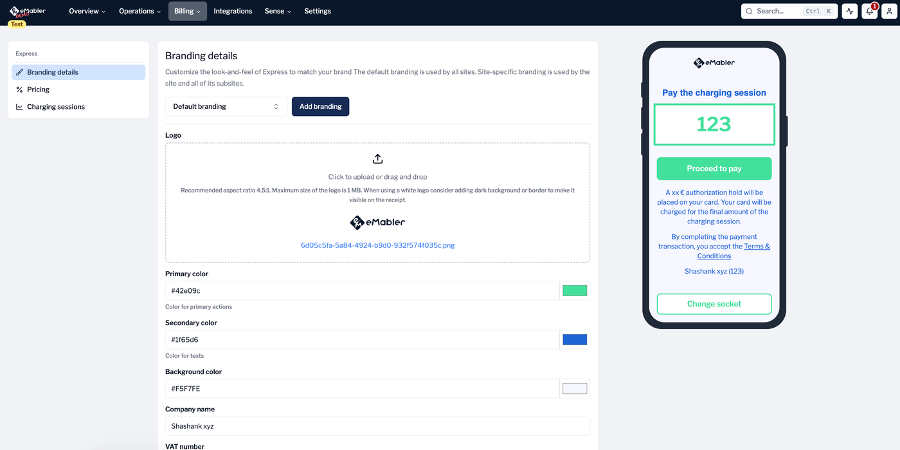
Default branding with the live Express preview. The preview updates as you change each field.
Branding fields
|
Field |
What it controls |
Notes |
|
Logo |
The logo at the top of the Express page and on the receipt |
Recommended aspect ratio 4.5:1, maximum 1 MB. A white logo needs a dark background or a border to stay visible on the receipt. |
|
Primary color |
Primary actions — Proceed to pay, the amount box, Change socket |
Check contrast against the background colour. |
|
Secondary color |
Text |
|
|
Background color |
The page background |
|
|
Company name |
The merchant name shown to the driver and on the receipt |
This is the name the driver sees on their card statement context, so use the trading name of the legal entity. |
|
VAT number |
The VAT number printed on the receipt |
Per legal entity — a reason to use site-specific branding in multi-country setups. |
|
Terms and conditions URL |
The link the driver accepts when paying |
|
|
Support text |
Free text shown on the receipt after the session ends |
Use it for your support phone number or a link to your service desk. |
Site-specific branding
A site-specific branding is used by the selected site and all of its sub-sites. This is how you run more than one brand, VAT number or set of terms from one Connect account.
-
Go to Billing → Express → Branding details and click Add branding.
-
Select the site in Add site-specific branding and confirm.
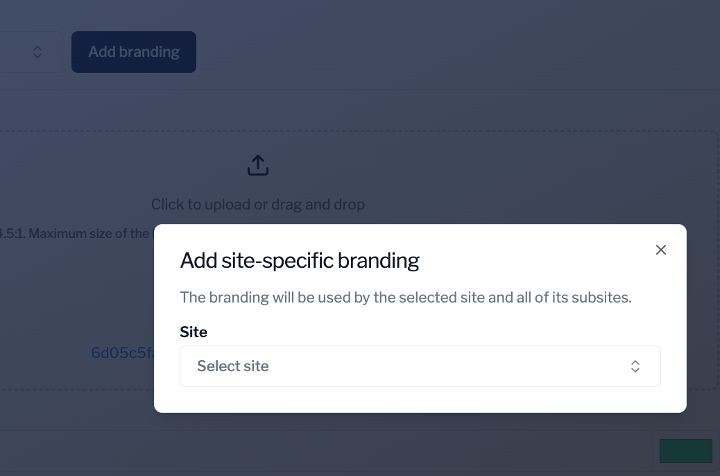
Add site-specific branding — the branding applies to the selected site and everything below it.
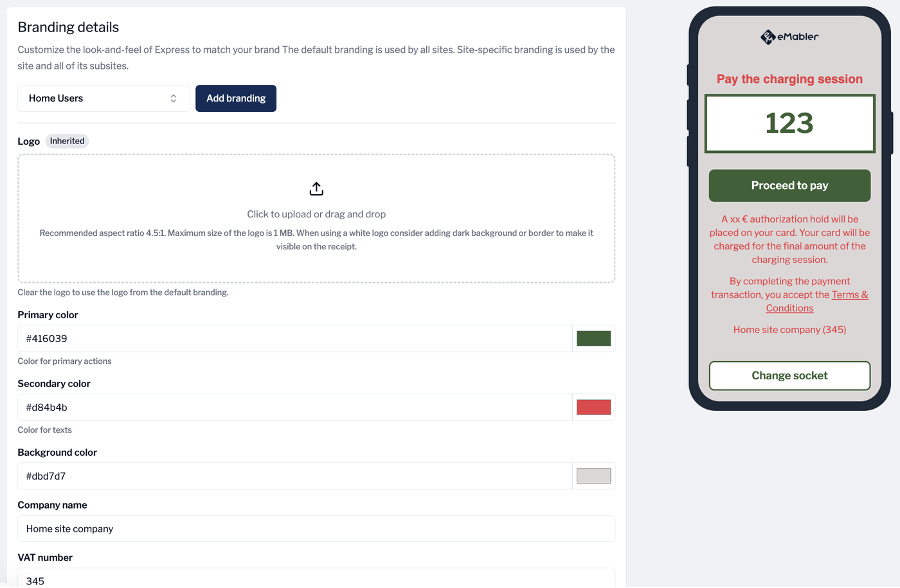
A site-specific branding for the Home Users site. The logo is inherited from the default branding; colours, company name and VAT number are overridden for this site.
Configure pricing
Express prices are created once at network level and then selected per socket. Create the prices you need before you enable Express on your chargers.
-
Go to Billing → Express → Pricing and click Add.
-
Enter the Unit price including tax.
-
Choose the Price type — Energy, Time or Flat.
-
Enter the Tax percentage. Tax is included in the unit price, not added to it.
-
Choose the Currency and save.
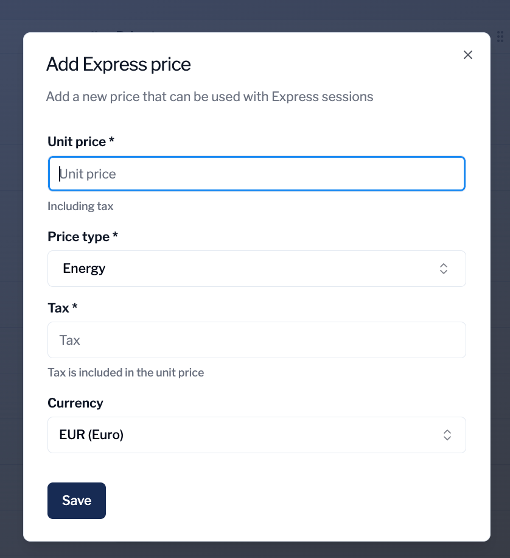
Add Express price. The unit price includes tax — 0.48 EUR/kWh at 25.5% tax means the driver pays 0.48 EUR/kWh in total.
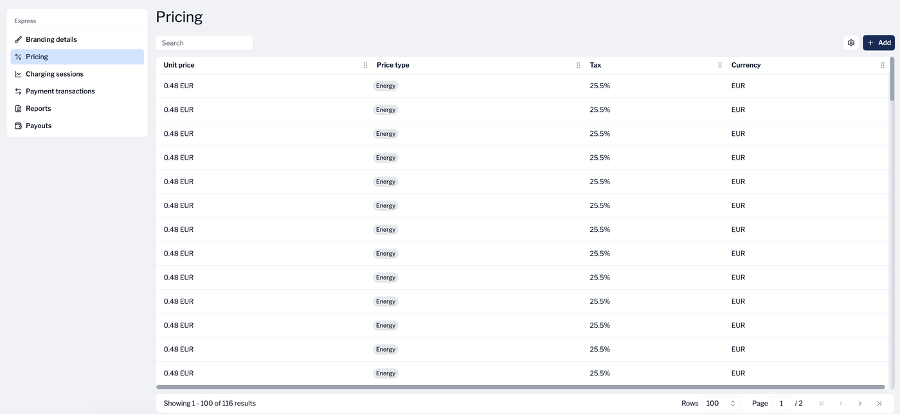
The Pricing list holds every Express price available to your sockets.
Assign an accounting unit to a site
An accounting unit defines how Express payments from a site and its sub-sites are settled. It holds one or more Adyen balance accounts and the percentage of the session fee each one receives. Without an accounting unit, a site cannot take Express payments.
You need the Balance account ID from your CSM before you start.
-
Go to Operations → Sites and open the site.

The site tabs. Accounting unit is the last one.
-
Open the Accounting unit tab and click Edit.
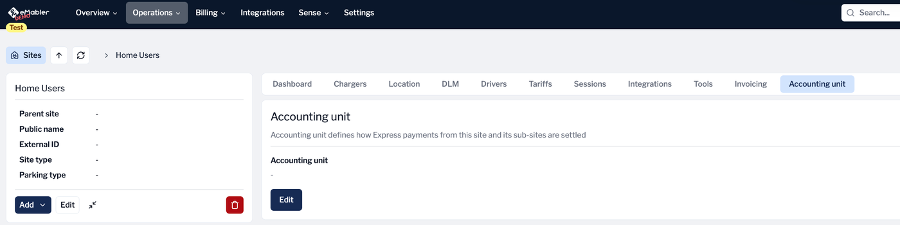
A site with no accounting unit assigned yet.
-
In Manage accounting units, either select an existing unit from the list on the left, or click Add to create a new one.
-
Give the unit a Name and a Description. Name it after what it settles — the country, entity or site — not after the person who created it.
-
Under Adyen payment splits, click Add split, enter the Balance account ID and the Percentage.
-
Check that Total shows 100%. Connect does not save a split set that does not add up to 100%.
-
Save, then click Assign accounting unit.
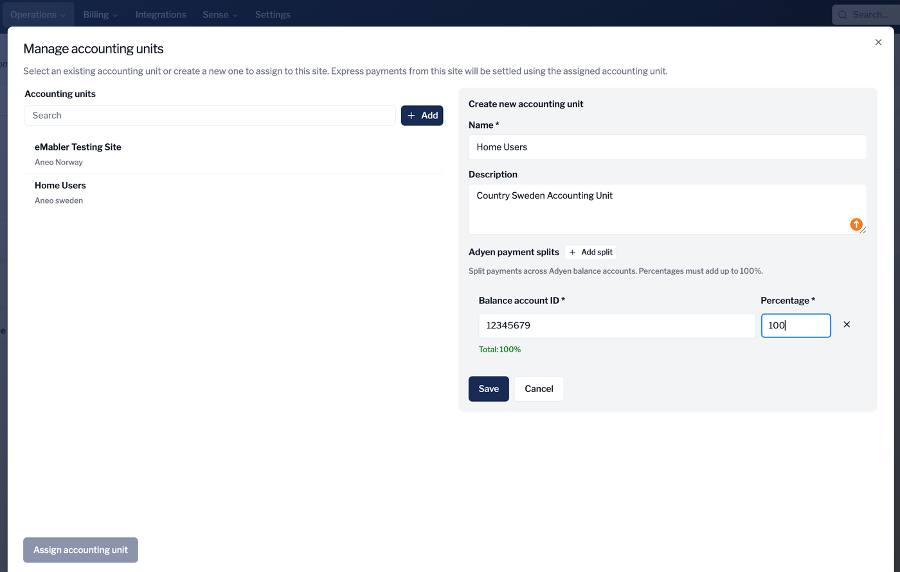
A new accounting unit with a single split: one balance account at 100%. The running Total: 100% confirms the split set is valid.
Accounting unit fields
|
Field |
What it does |
|
|
Name |
Identifies the unit in the list when you assign it to other sites |
|
|
Description |
Free text — use it to record the country and legal entity, for example "Country Sweden accounting unit" |
|
|
Balance account ID |
The Adyen balance account that receives the money. Supplied by your eMabler CSM after onboarding. |
|
|
Percentage |
The share of the session fee this balance account receives. All splits in a unit must total 100%. |
|
Splitting between more than one account
Click Add split again to pay more than one balance account from the same session — for example 85% to the operator and 15% to the property owner. The percentages still have to total 100%.
How accounting units inherit
An accounting unit assigned to a site applies to that site and every site below it, until a site below sets its own. An override then applies to that site and its own sub-sites, and stops there.
Take a tree where A is the parent, B and C are sub-sites of A, D is a sub-site of B and E is a sub-site of C:
|
Site |
After you assign accounting unit 1 to A |
After you then assign accounting unit 2 to B |
|
A (parent) |
Unit 1 |
Unit 1 |
|
B (sub-site of A) |
Unit 1 (inherited from A) |
Unit 2 (assigned on B) |
|
D (sub-site of B) |
Unit 1 (inherited from A) |
Unit 2 (inherited from B) |
|
C (sub-site of A) |
Unit 1 (inherited from A) |
Unit 1 (inherited from A) |
|
E (sub-site of C) |
Unit 1 (inherited from A) |
Unit 1 (inherited from A) |
So changing B does not touch C or E. This is what makes use case 3 work: you override settlement exactly where the money has to change hands, and the rest of the tree keeps following the parent.
How the money splits
eMabler deducts 5% of the session fee to cover Adyen payment processing. Your accounting unit splits what is left. A 100% split therefore means 100% of the session fee after the 5% deduction.
Worked example — a 10 EUR session at a 100% split
|
Line |
Amount |
|
Session cost paid by the driver |
10.00 EUR |
|
eMabler fee for Adyen processing (5%) |
−0.50 EUR |
|
Remaining amount to split |
9.50 EUR |
|
Your accounting unit split (100%) |
9.50 EUR |
|
Paid out to your balance account |
9.50 EUR |
If the same session ran through an accounting unit split 85/15 between two balance accounts, the 9.50 EUR would be divided 8.08 EUR and 1.42 EUR.
Enable Express on a charger
Express is enabled per charger, and priced per socket.
-
Open the charger and go to the Express tab.
-
Set the Express URL — the path after express.emabler.net/. Use something a driver can read out over the phone to your support desk.
-
For each socket, select a price from the list you created in Billing → Express → Pricing.
-
Save, then set the toggle to Enabled.
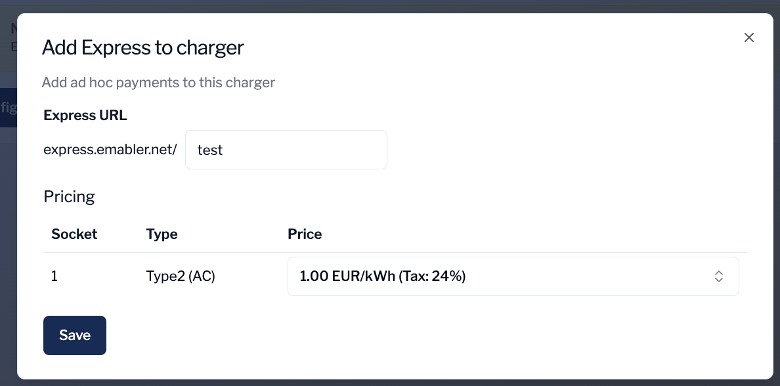
Add Express to charger — the URL and a price per socket.
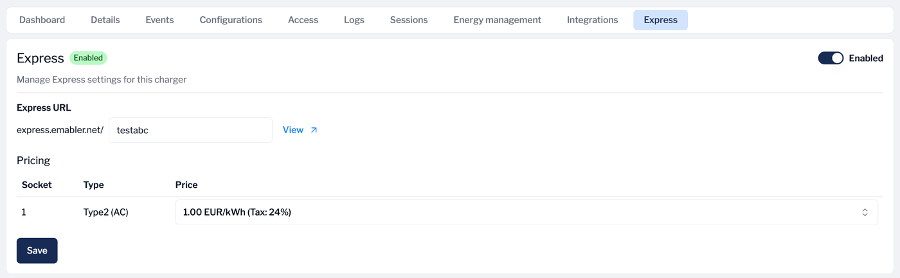
The Express tab on an enabled charger. View opens the driver-facing page so you can check the branding and price.
|
Before you print QR codes Open the View link and check the page end to end on a phone. The Express URL is printed on the sticker, so changing it after the stickers are on the chargers means reprinting them. |
Test Express before you go live
-
Open the Express URL for the charger and select a socket.
-
Connect a vehicle.
-
Pay using the Adyen test card credentials from eMabler support and authorize the transaction.
-
Opt in for the receipt and check that your logo, company name, VAT number and support text appear correctly.
-
Stop the session from the browser.
-
Check the session in Billing → Express → Charging sessions and the payment in Payment transactions.
Run the test on the test environment, and repeat it once per branding — a site-specific branding with a low-contrast colour pair is only obvious on a real phone screen.
Monitor sessions, payments and payouts
Express reporting is split across four views under Billing → Express. They answer different questions, so use the right one.
|
View |
Question it answers |
Source |
|
Charging sessions |
What was charged, where, and for how long? |
eMabler Connect |
|
Payment transactions |
What did the driver pay, and what did we net? |
Adyen |
|
Reports |
Give me the file my finance team can reconcile against. |
Adyen, generated daily at midnight UTC |
|
Payouts |
How much has been paid into our bank account, and when? |
Adyen, generated daily at midnight UTC |
Charging sessions
Every session started through Express, with charger, socket, site and EVSE transaction ID. Click View on a completed session for the detail, or Export for a CSV.
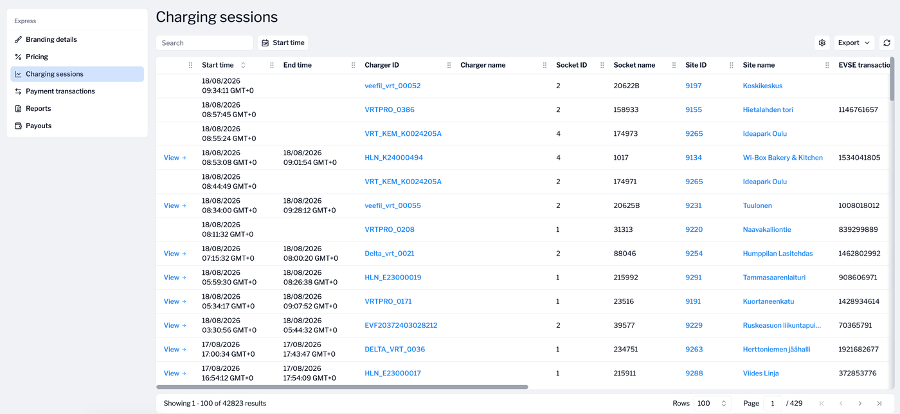
Charging sessions generated by Express. A row without an end time is a session still running.
Payment transactions
Payments processed through Adyen, with the payment method, the gross amount the driver was charged and the net amount after fees and splits. Total incoming, Total outgoing, Available balance and Reserved balance sit above the list. Switch to Insights for the period totals split by payment and transfer.
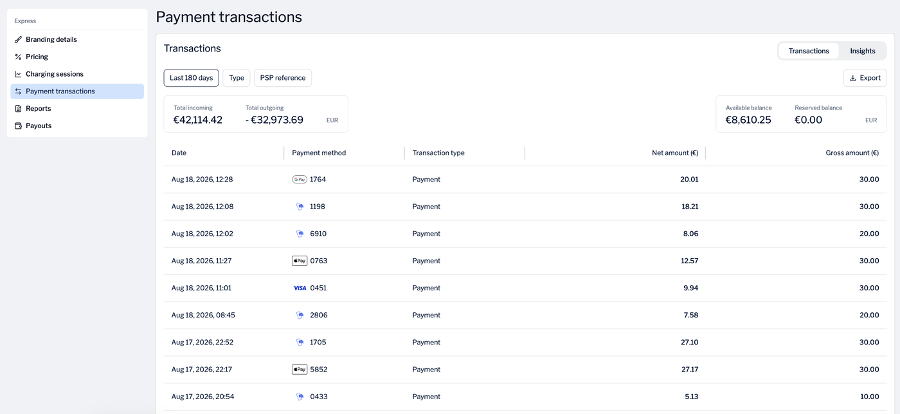
Payment transactions for the last 180 days. Gross is what the driver paid; net is what reached the balance account.
Reports and payouts
Payouts shows one row per payout with Funds captured, Adjustments and Net payout. Reports holds the matching downloadable payout report from Adyen. Both are generated each day at midnight UTC, so a payout made overnight appears the following day.
Payout report reference
The payout report is the file your finance team reconciles against. It is a CSV named balanceaccount_payout_report_YYYY_MM_DD.csv, downloaded from Billing → Express → Reports. Each row is one transfer on your Adyen balance account.
Columns
|
Column |
What it holds |
|
BalancePlatform |
The Adyen balance platform — EMabler |
|
AccountHolder / AccountHolder Reference / AccountHolder Description |
The Adyen account holder created during your KYC onboarding, and its readable name |
|
BalanceAccount / BalanceAccount Reference / BalanceAccount Description |
The balance account the transfer belongs to — the same ID you entered in the accounting unit |
|
Transfer Id / Transaction Id |
Adyen identifiers for the transfer. Quote these when raising a payment query. |
|
Booking date / Booking date TimeZone |
When the transfer was booked |
|
Value date / Value date TimeZone |
When the funds became available |
|
Category |
platformPayment for a session capture, bank for the payout to your bank account |
|
Type |
capture for a session, bankTransfer for the payout |
|
Status |
captured or booked |
|
Currency |
Transfer currency |
|
Balance (PC) |
The amount of this transfer. Positive for captures, negative for the payout. |
|
Rolling Balance |
The running balance on the account after this transfer |
|
Reference / Description |
Seller split on a session capture; eMabler Ad-Hoc Payment monthly payout on the bank transfer |
|
Psp Payment Merchant Reference / Psp Payment Psp Reference |
Adyen references for the original driver payment — use these to match a report row to a row in Payment transactions |
|
Psp Modification Psp Reference / Psp Modification Merchant Reference |
Adyen references for the capture on that payment |
|
Payout Date |
The payout the row belongs to. Every row in one report shares this value. |
How to read it
A report contains many capture rows and one bank transfer row. The captures are your sessions; the bank transfer is the money leaving Adyen for your bank. They net to zero.
In the sample report for the payout dated 2 August 2026:
-
1,429 rows with Type capture, Description Seller split, totalling 17,494.62 EUR — the sessions from 2 to 30 July, each already net of the 5% fee and split by your accounting unit.
-
1 row with Type bankTransfer, Description eMabler Ad-Hoc Payment monthly payout, at −17,494.62 EUR.
-
Rolling Balance on that last row is 0.00 — everything captured in the period has been paid out.
The same 17,494.62 EUR appears as Net payout for 2 August 2026 in Billing → Express → Payouts. If those two numbers disagree, check for Adjustments on the payout row before raising a query.