
Charger Overview
When chargers are added to the Connect platform, their profiles are automatically enriched with key metadata to support visibility, control, and diagnostics. This centralized view allows operators to monitor and manage their EV chargers across the entire EV charging network with confidence.
Charger Profile Includes:
-
Charger ID
-
Firmware Version
-
Manufacturer and Model (if available)
Charger Card UI Elements:
Each charger card presents at-a-glance information:
-
Status: Online / Offline
-
Label & Charger ID
-
Manufacturer, Model, Firmware, Serial, EVSE ID
-
Last Message: Latest Heartbeat or error messages
-
Comments: Add collaborative notes and installation insights
Socket Details
Sockets are listed in the Details tab of each charger profile.
Socket Information Includes:
-
Socket ID (e.g.,
1321) -
Status: Available / Charging
-
Voltage & Amperage (e.g.,
123V / 123A) -
Socket Type (e.g., Type2 AC)
-
Controls: Start, Stop, Unlock, Set Active/Inactive, Refresh
If a charger shows "No sockets", it may not be connected to the correct OCPP endpoint.
Click here to get more information on the Socket Status
Remote Socket Actions
Operators can remotely manage sockets via:
Charger > Details > Sockets > Actions (⋮)
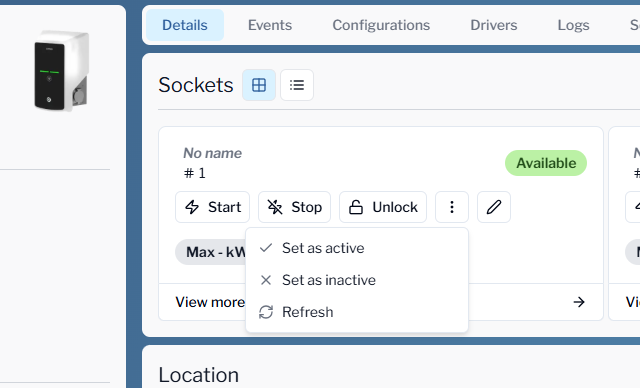
Available Actions:
-
Start Charging
-
Precondition: Cable must be plugged into the EV.
-
Options:
-
Custom RFID: For testing or unregistered users.
EnsureAuthorizeRemoteTxRequests = falsein OCPP config. -
Driver RFID: Select a registered driver and tag.
-
-
-
Stop Charging
-
Ends an active session.
Status will update to Finishing if successful.
-
-
Unlock Cable
-
Releases cable from the socket.
If it fails, a charger reboot may help.
-
-
Set Socket as Active
-
Reactivates a previously deactivated socket.
-
-
Set Socket as Inactive
-
Disables the socket temporarily to prevent usage.
-
Location Settings
The location of the site associated with a charger is displayed on the Charger Details page within the Connect UI. Accurate location information improves site visibility and app integration.
Editable Location Fields:
-
Street Address
-
City, Country, Postal Code
-
Latitude / Longitude (via interactive map)
Why It Matters:
-
Enables correct charger placement
-
Supports location-based analytics
-
Ensures visibility in driver-facing apps
Installation Details
This section tracks logistical and technical info essential for successful deployments and maintenance.
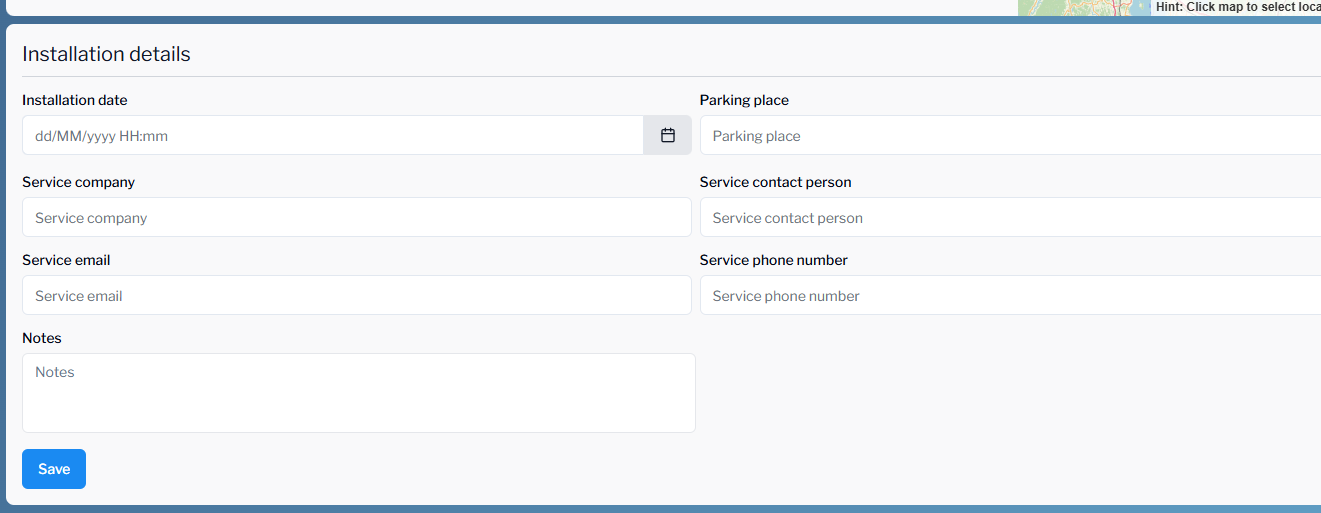
Installation Fields Explained:
|
Field |
Description |
|---|---|
|
Installation Date |
Scheduled date/time (format: |
|
Parking Place |
On-site reference for charger location |
|
Service Company |
Name of the installation company |
|
Service Contact Person |
Point of contact for installation |
|
Service Email |
Email for service updates and troubleshooting |
|
Service Phone Number |
Direct phone line for contact person |
|
Notes |
Additional context or instructions |
Events Tab – Diagnostics & Logs
Track charger-side events in real time or historically.
Key Information Logged:
-
Timestamps of each event
-
Socket ID involved
-
Status: Online / Offline
-
Type: charger_state, connection_state, etc.
-
Details: E.g., “WebSocket Connection Opened”
Use Cases:
-
Validate charger communication
-
Identify session drops or errors
Click here to get more information on the Event tab
Configuration Settings
The Configurations tab shows current charger parameter values, which can be customized for site-specific needs.
Common Configuration Keys:
-
AlignedDataCtrl_Enabled -
AuthCtrlr_LocalAuthorizeOffline -
ChargingStation_SupplyPhases -
AuthorizeRemoteStart -
Cache lifetimes, measurement intervals, and more
These are typically pre-set but can be fine-tuned as needed.
Click here to get more information on the Configuration tab
Summary Table – Charger & Socket Onboarding
|
Section |
Key Elements |
Purpose |
|---|---|---|
|
Charger Profile |
Charger ID, Firmware, Model, Site Info |
Identify and locate charger; link to site context |
|
Charger Card UI |
Status, Serial, Last Message, Comments |
Monitor charger health and communication |
|
Socket Information |
Socket ID, Status, Voltage/Amperage, Type, Controls |
Understand socket state and perform live actions |
|
Remote Actions |
Start/Stop Charging, Unlock Cable, Activate/Deactivate Socket |
Operator control and session management |
|
Location Settings |
Address, City, Country, Lat/Long |
Ensure proper placement and enable app/map visibility |
|
Installation Details |
Installer info, Service contacts, Notes |
Supports coordination and traceability during deployment |
|
Events Tab |
Timestamps, Socket ID, Status, Event Type, Info |
Log and diagnose charger events and session behavior |
|
Configuration |
OCPP & system parameters (e.g., AuthCtrlr, SupplyPhases) |
Customize operational behavior and backend logic |