
The eMabler platform provides powerful remote tools for charger management and troubleshooting. Through the Actions menu, operators can perform key maintenance, configuration, and administrative tasks, improving uptime, operational control, and service responsiveness. These remote actions reduce the need for on-site visits, helping CPOs lower costs and resolve EV charger issues faster.
1. Reboot Charger
Purpose:
Resolve operational issues, apply new configurations, or complete firmware updates.
Access Path:
Charger > Actions > Reboot
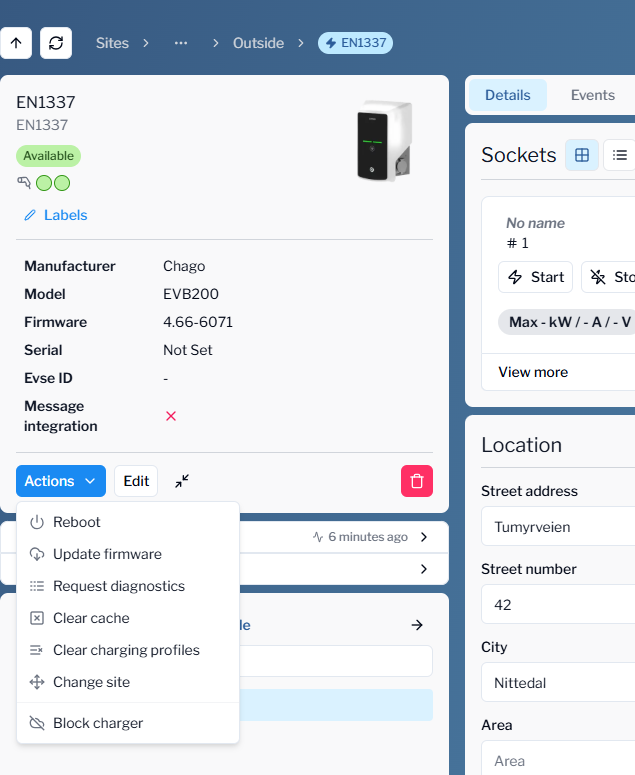
Reboot Types:
-
Soft Reboot: Graceful restart without interrupting power flow.
-
Hard Reboot: Powers down the charger completely before restarting.
Use Soft in most cases. Use Hard only if specified by the manufacturer or if the charger is unresponsive.
2. Update Firmware
Purpose:
Install new software releases to enhance performance, compatibility, and security.
Steps
-
Navigate to the charger in Connect
-
Click Actions → Update Firmware
-
In the update dialog, choose one of the following tabs:
Automatic Update (Recommended)
Use this method to upload firmware directly from your computer.
Steps:
-
Select the Automatic tab
-
Upload the firmware file
-
Click to upload or drag and drop the file
-
-
(Optional) Add a reason for the update (for tracking and audit purposes)
-
Click Update firmware
What happens next:
The system automatically handles:
-
File upload
-
Secure distribution to the charger
-
Execution of the firmware update request
Manual Update
Use this method if the firmware is hosted externally.
Steps:
-
Select the Manual tab
-
Enter the full firmware URL (including credentials if required), for example:
ftp://user:pass@server.com/firmware.bin -
(Optional) Add a reason for the update
-
Click Update firmware
Notes:
-
The charger downloads the firmware directly from the provided URL
-
Ensure the file is accessible from the charger network
Monitoring the Update
After initiating the update:
-
Check the Last message section on the charger page for status updates
-
Monitor logs or messages for:
-
Update initiation
-
Progress (if supported by charger)
-
Completion or failure
-
3. Request Diagnostics
Purpose:
Request diagnostic logs from the charger to support remote troubleshooting.
Requirements:
An FTP URL where the charger can upload the diagnostics ZIP.
Steps:
-
Go to
Actions > Request Diagnostics. -
Input the FTP address with credentials if needed.
-
Confirm to trigger diagnostics upload.
Success Example (Last message):
// Example message:
[
  2,
  "35123123-asd23-243x-ba12-0141fc",
  "DiagnosticsStatusNotification",
  { "status": "Uploaded" }
]
Click here to get more information on how to retrieve diagnostic information
4. Clear Cache
Purpose:
Flush authorization and session caches stored on the charger.
When to use:
-
Delays or failures in user authorization
-
Suspected outdated session data
Access Path:
Actions > Clear Cache
No reboot required afterward.
5. Clear Charging Profiles
Purpose:
Remove charger-side Dynamic Load Management (DLM) schedules or limits.
Steps:
-
Go to
Actions > Clear Charging Profiles. -
Check the Confirm box and click Clear Charging Profiles.
-
Manually reboot the charger afterward to fully reset power rules.
Until rebooted, power constraints may not be enforced.
6. Change Site
Purpose:
Move a charger to a different site within your operator or customer organization.
Steps:
-
Go to
Actions > Change Site. -
Select the target site from the searchable dropdown.
-
Click Save to reassign the charger.
This is useful for reorganizing installations, migrations, or fixing misassignments.
Summary Table
|
Action |
Purpose |
Input Required |
Reboot Needed |
|---|---|---|---|
|
Reboot Charger |
Resolve errors / finalize updates |
Select reboot type |
Optional |
|
Update Firmware |
Apply firmware updates |
URL to firmware file |
Sometimes |
|
Request Diagnostics |
Retrieve charger logs |
FTP upload URL |
No |
|
Clear Cache |
Flush authorization/session data |
None |
No |
|
Clear Charging Profiles |
Remove DLM/scheduling constraints |
Confirmation |
Yes |
|
Change Site |
Move charger to another site |
Site selection |
No |