
What self-onboarding is
Without self-onboarding, a home charger that is already installed has to be moved to your network by hand: someone logs into the manufacturer's portal and changes the charger's OCPP backend address to eMabler. This is slow, needs support time, and often goes wrong.
With self-onboarding, the driver does it themselves in the Driver app. They log in with their charger manufacturer account and approve access. eMabler then connects the charger to your network, using the manufacturer's own API. No one has to touch the charger or the manufacturer portal.
Why it matters for you
-
Less support work. No manual portal steps or support tickets per charger.
-
Faster activation. The charger is ready for your services, such as smart charging and energy management, as soon as the driver approves.
-
Your brand throughout. The driver sees your name and logo in the Driver app and on the manufacturer's consent screen, not eMabler's.
-
Driver consent on record. Access is granted by the charger owner through the manufacturer's login, so ownership is confirmed by the manufacturer.
Supported manufacturers
|
Manufacturer |
Status |
Consent method |
Access granted at |
|
Easee |
Available in test environment |
OAuth2 login with the driver's Easee account |
Charger level |
|
Zaptec |
Coming mid-October 2026 |
Driver logs in to Zaptec and grants access to your Zaptec user group |
Installation level (all chargers in the installation) |
More manufacturers will follow. Ask your eMabler contact about the roadmap for other brands.
How it works end to end
The table shows who does what, from setup to a charger ready to use.
|
# |
Who |
What happens |
Who |
What happens |
|
|
1 |
Operator and eMabler |
Self-onboarding is set up for your organisation, including your own manufacturer credentials and branding. |
|
|
|
|
2 |
Driver |
Opens the Driver app in your app or website and chooses to add a home charger. |
|
|
|
|
3 |
Driver |
Selects the charger manufacturer and is sent to the manufacturer's login page. |
|
|
|
|
4 |
Driver |
Logs in with their own manufacturer account and approves access. The consent screen shows your brand. |
|
|
|
|
5 |
Manufacturer |
Confirms the approval and sends the driver back to the Driver app. |
|
|
|
|
6 |
eMabler Connect |
Connects the charger to your network and links it to the driver. |
|
|
|
|
7 |
Driver |
Sees the charger in the Driver app and can start using it. |
|
|
|
Before you start: operator setup
Complete these steps once per operator before you open self-onboarding to drivers.
-
Enable the Driver app for your organisation in eMabler Connect, and embed it in your app or website. See the Driver app page on the Knowledge Portal for the embedding steps.
-
Link your drivers. Each driver must exist in Connect and be linked to your user through an external ID, as for all Driver app use.
-
Get your own manufacturer credentials. Easee issues a separate OAuth client for each partner. eMabler requests this for you, and you approve the request with Easee
-
Set your branding. Add your brand name and logo so the Driver app and the manufacturer consent screen show your identity.
-
Decide where onboarded chargers go. Agree with eMabler which site or group in Connect new home chargers are added to, and which tariff or services apply by default
-
Test with one charger. Onboard one charger from a test driver account before opening the feature to all drivers.
|
Tip. Tell your drivers before launch that they will need their manufacturer app login (email and password). This is the most common reason drivers stop halfway. |
Driver journey: Easee
Easee self-onboarding is available in the test environment. Use it to test the flow with your own Easee charger before release to drivers
These are the steps your driver follows. You can reuse this text in your own driver help pages.
-
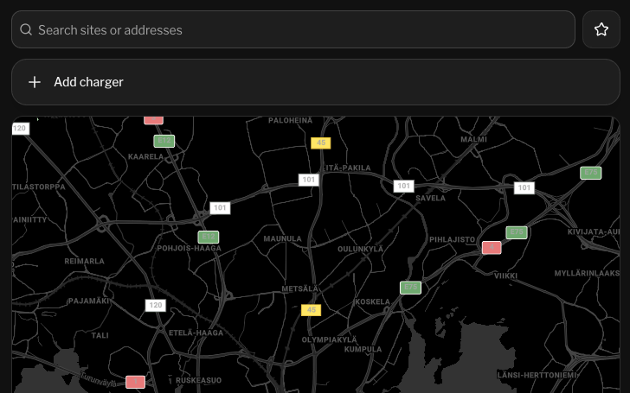
Open the Driver app and select Add charger.
-
Choose Easee from the list of manufacturers
-
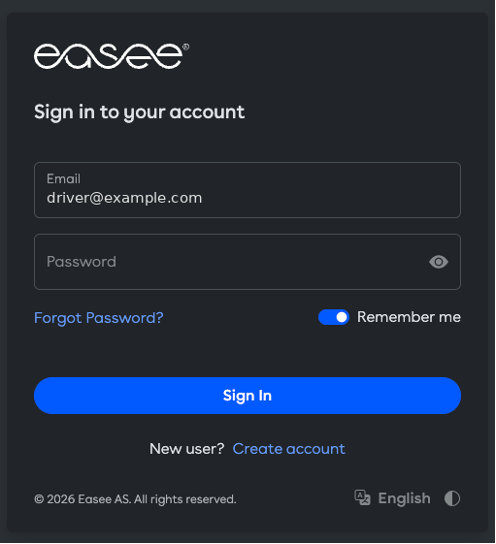
Log in with your Easee account, the same email and password you use in the Easee app. The login page is Easee's own, so eMabler never sees the password.
-
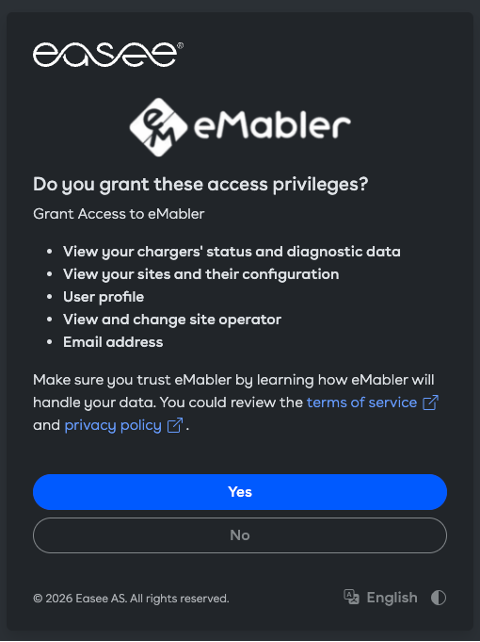
Review the access request and select Yes to approve.
-
You are sent back to the Driver app. Your charger now appears in your list of chargers.
What the driver approves
On the Easee consent screen the driver grants these access rights:
-
View your chargers' status and diagnostic data
-
View your sites and their configuration
-
User profile
-
View and change site operator
-
Email address
Selecting No cancels the request. Nothing changes on the charger.
What the driver needs
-
An Easee charger that is installed, powered on and online
-
Their Easee account login
-
Access to the Driver app through your app or website
What happens in eMabler Connect
After the driver approves, the charger shows up in eMabler Connect like any other charger on your network.
-
The charger is added to your network and linked to the driver who onboarded it.
-
Sessions from the charger appear in Connect and in the driver's session history in the Driver app.
-
You can apply your services to it, for example tariffs, smart charging and energy management
-
The charger's status is visible in Connect, so your support team can see if it goes offline [confirm].
Zaptec: coming mid-October 2026
Zaptec self-onboarding is planned for release in mid-October 2026. It follows the same pattern as Easee, with a few differences that come from how Zaptec manages access.
Planned driver flow
-
The driver selects Zaptec in the Driver app.
-
The driver logs in to Zaptec and approves access for your organisation.
-
Zaptec gives your organisation's Zaptec user group access to the driver's installation, and sends the driver back to the Driver app.
-
eMabler reads the chargers in the installation and moves their OCPP connection to eMabler.
-
The charger appears in the Driver app and in eMabler Connect.
Differences from Easee
|
Topic |
Zaptec |
|
Access |
Granted for a whole installation, not per charger. |
|
Several chargers |
If an installation has more than one charger, the driver may choose which chargers to move |
|
Charger types |
Designed for Zaptec Go and Zaptec Home. Zaptec Pro needs extra handling |
|
Operator setup |
Your organisation needs a Zaptec user group, set up with eMabler. |
We will update this guide when Zaptec self-onboarding is released.
Troubleshooting
|
Symptom |
Likely cause |
What to do |
|
Driver cannot log in to the manufacturer |
Wrong account, or the charger is registered to another person |
The driver logs in with the account that owns the charger in the manufacturer app. |
|
Charger does not appear after approval |
Charger offline, or the approval was not completed |
Check that the charger is online, then repeat the steps. Contact support if it still does not appear. |
|
Consent screen shows the wrong brand |
Operator branding or manufacturer client not set up |
Contact eMabler support to check your self-onboarding setup. |
|
Driver cancelled halfway |
The driver closed the manufacturer page |
The driver starts again from Add charger. Nothing is changed until approval is complete. |