
eMabler Dynamic Load Management (DLM) supports external energy meters to manage EV charging more efficiently. Instead of relying only on charger values, the system also considers the building’s total power consumption. This ensures safe, optimized use of available capacity.
1. Wiring the Perific Meter
-
Install the Perific external meter so that it measures the total site consumption (all building loads + EV chargers).
-
eMabler will calculate the external load by subtracting the EV charging load from the meter’s reported total.
2. Navigate to DLM Settings
-
In the Site view, click the DLM tab.
-
Scroll down to the Circuit section.
-
Select Add external meter.
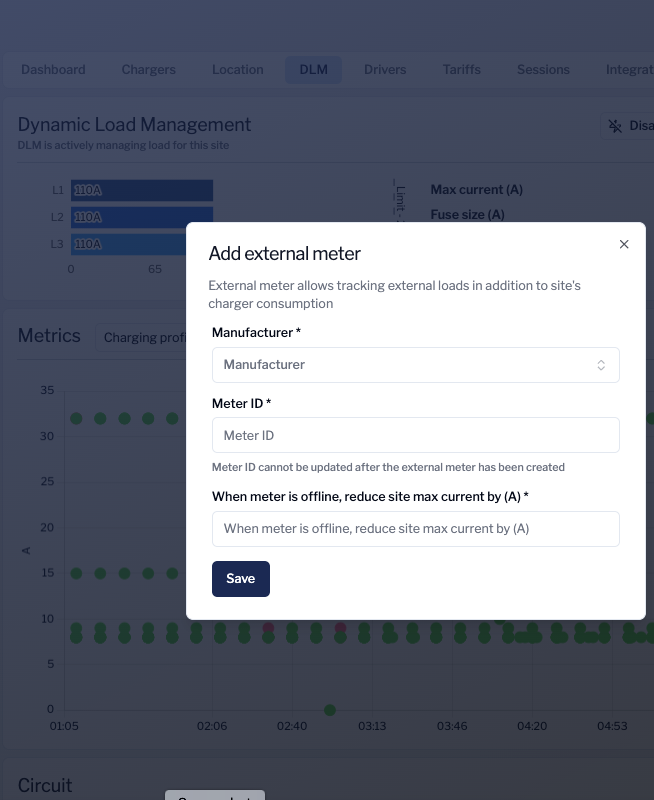
3. Add the External Meter
A pop-up window opens where you configure the meter:
-
Manufacturer
Select PERIFIC from the list. -
Meter ID (required)
Enter a globally unique ID.-
Best practice: include organization + location (e.g.,
eMabler-HQ-Garage-1). -
Note: the ID cannot be changed after creation.
-
-
When meter is offline, reduce site max current by (A) (required)
Define how much to lower the site’s max current if the meter goes offline.-
Example: if site Max Current = 100A and offline value = 100A, charging will be fully disabled when the meter is offline.
-
Click Save when done.
4. Configure the Perific Monitor
-
Use the Perific mobile app to complete the meter setup and monitoring.
-
Ensure the app is paired with the correct site and reporting values are visible.
Further instructions are available here:
https://download.perific.com/guides/emabler-integration-guide