
The main addition in this release is a new Success rate, which shows how often a driver's attempt to charge leads to a charging session. Chargers and sockets also get a maintenance priority, and Express gets its own overview of the chargers you have set up for it. Sites can now hold photos for your customer service. The dashboard is now built from widgets you can arrange yourself. We have also fixed a lot of smaller issues and made the per charger rates on the site dashboard readable on large sites.
New Success Rate
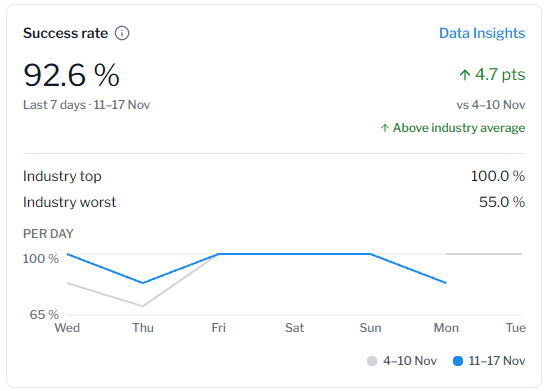
Success rate now answers the question drivers care about: when someone tries to charge, does it work? The new Success rate is the share of charging attempts that led to a charging session. Every attempt is counted once, from plugging in until the socket is free again, so a charger that often fails to start a session lowers the rate even when it completes few sessions.
You find the new rate on the site and charger dashboards and on a new page under Data Insights > Success rate. The page has a day-by-day chart, the number of successful and failed attempts behind the rate, and an export.
How it differs from Active charger rate
Connect now shows two rates. The rate you knew as Success rate is still there and is calculated as before, under a new name: Active charger rate. You find it on the site and charger dashboards and under Data Insights > Active charger rate.
|
|
Success rate (new) |
Active charger rate (previously Success rate) |
|---|---|---|
|
The question it answers |
When a driver tries to charge, does it work? |
How reliably do the chargers that are in use start charging? |
|
What is counted |
One attempt by a driver, from plugging in until the socket is free again |
Each time a socket reports that it is getting ready to charge. One attempt by a driver can be counted several times |
|
When it is a success |
A charging session started during the attempt |
Charging started within 10 minutes |
|
How chargers are combined |
Every attempt weighs the same, whichever charger it happened on |
Each charger's rate is weighted by the charging sessions it completed. Chargers with no completed sessions are left out |
|
Figures available |
From the day the rate was introduced. Earlier days stay empty |
As before, including earlier figures |
The two numbers are not meant to match, and the new Success rate is usually the lower one. For example, a charger that failed every attempt during a week completed no charging sessions. It is left out of Active charger rate, but each of those attempts lowers Success rate. Both rates have a help text in Connect that says what they count.
Charger and Socket Priority
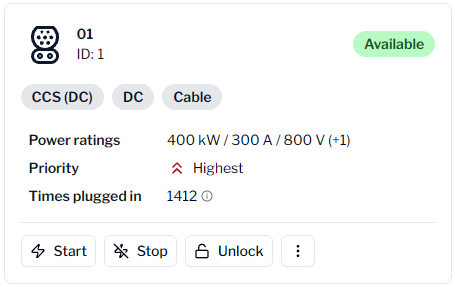
You can now give every charger and socket a maintenance priority, so the people who fix them know where to go first. Pick the level under Charger > Edit charger details. A socket follows its charger unless you give it a level of its own under Edit socket. The priority is shown on the charger summary and on each socket card, and the Chargers and Sockets lists have a Priority column you can sort by.
Modular Dashboard
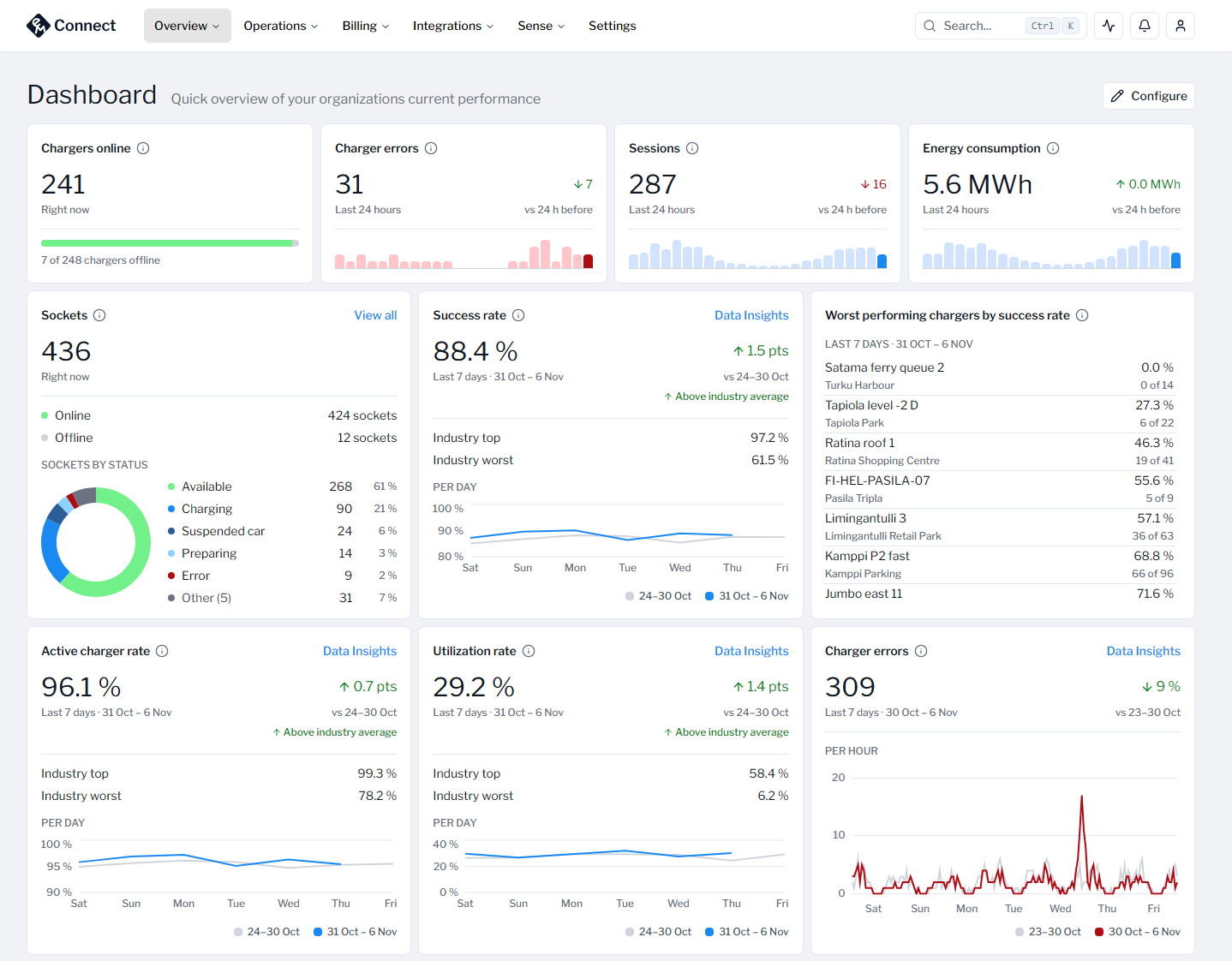
The Connect dashboard is now made of widgets. Add the ones you need from the widget catalog, arrange them in the order that suits your work and remove the rest. Connect remembers your layout. Every operator gets the new dashboard, with a default set of widgets to start from.
A new widget, Worst performing chargers by success rate, lists the chargers with the lowest Success rate over the last 7 days, each with a link to the charger.
Express Chargers
The new Express > Chargers page lists every charger you have set up for Express, whether it is enabled or not. Each row shows the charger, its Express URL and its status, and opens the charger's Express settings. You can search the list, narrow it to a site with or without its subsites, and export it to Excel with the same filters.
Site Photos
You can now add photos to a site. Open the Photos card on the site page and choose Add photos... and give each photo a caption if you like. Click a photo to browse all of them in full size, edit a caption or delete a photo. A site holds up to 50 photos.
Other features released
-
The per charger rates on the site dashboard are now lists with the lowest rate first, so a site with many chargers stays readable. On large sites the rates now cover every socket for the whole week.
-
The Pulse automation activity timeline shows the date and time of each entry, followed by how long ago it was.
-
Editing your account settings no longer leaves you on the "You don't have permissions" page.
-
Other small bug fixes.
If you have any questions regarding these changes, feel free to contact us at our Service Desk or at support@emabler.com